SheevaPlug Power Supply – Sorted

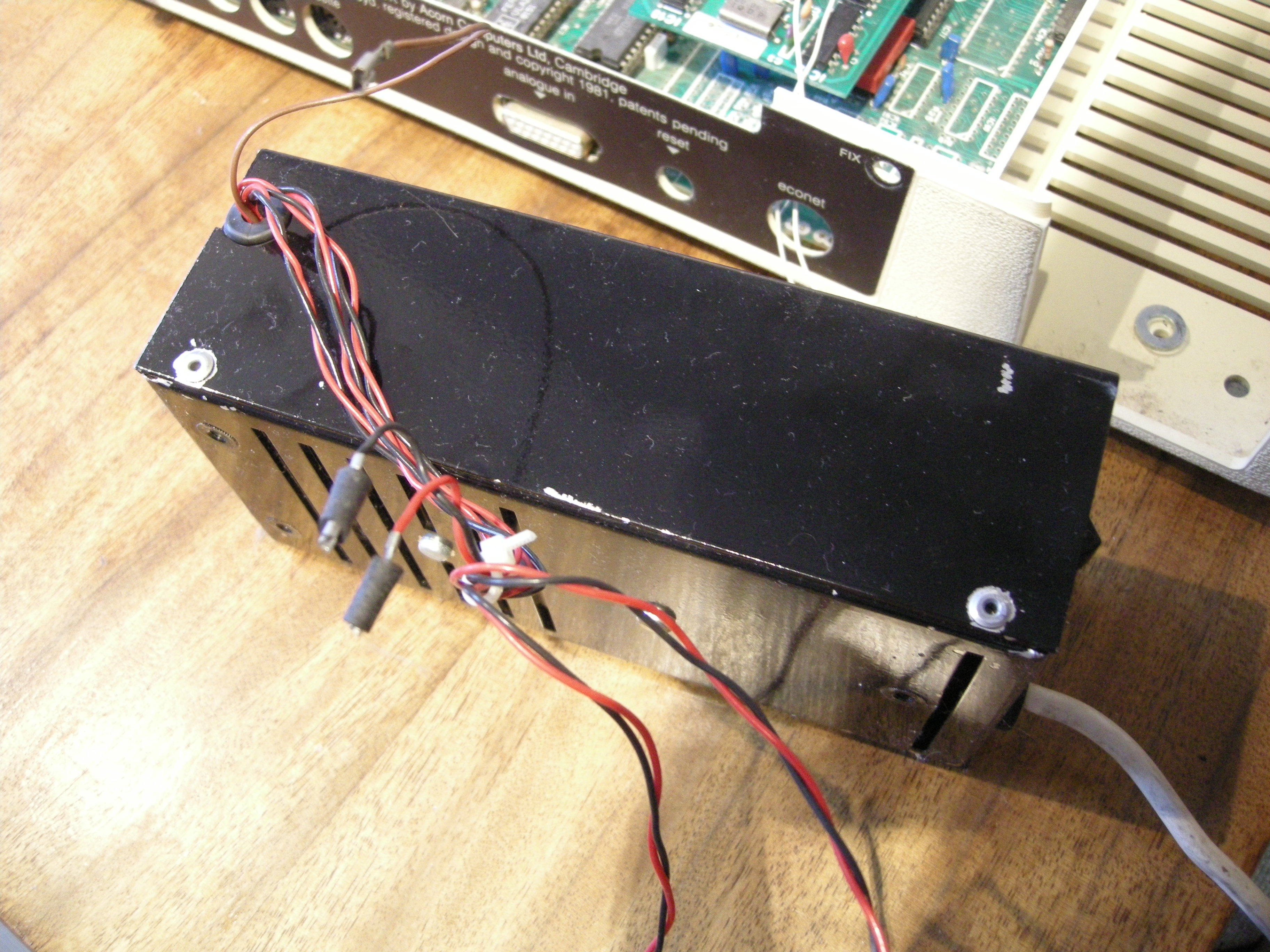
From the department of over-engineering comes this: a SheevaPlug power supply to end all SheevaPlug power supplies. I’ve got fed up with power supplies dying. First the SheevaPlug’s infamous internal one only lasted a few months, then I think two wall-warts expired in turn. Most recent was the horrid little one at the bottom of the photo, which didn’t come back on after being switched off. It also generated so much radio interference that it actually stopped the touch pad on my laptop working. No joke.

The new one is at the top of the picture.

Img_6118

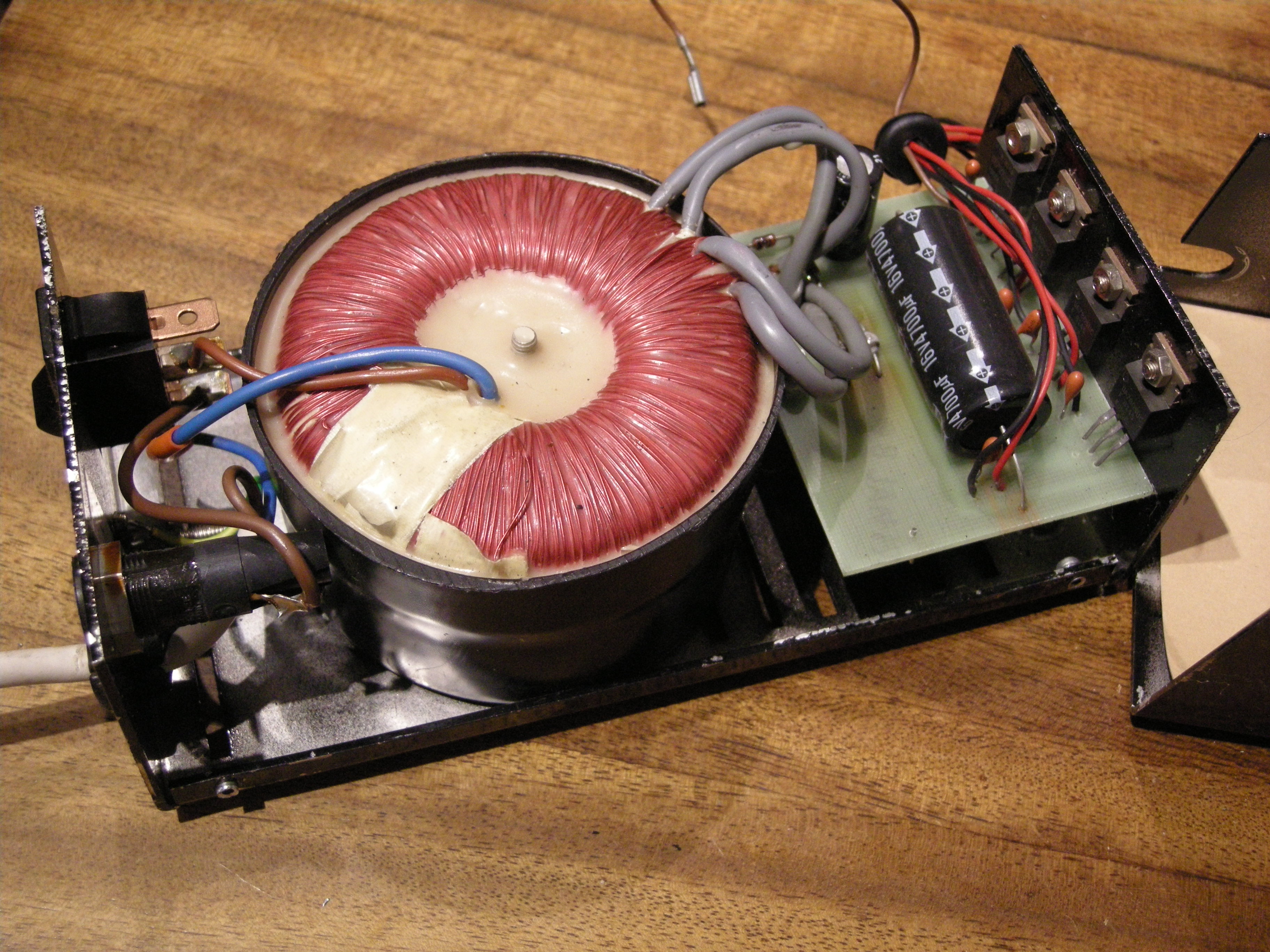
I made it from a power supply I scavenged from a scrap network switch or disc drive enclosure a few years ago, feeling sure it would Come In Handy. It seems to be well built, and has a bunch of features which are missing from most wall warts:

  • a fuse, so it shouldn’t go up in flames if something goes wrong
  • interference suppression, so I should still be able to listen to Radio 4
  • some attempt at protection against power transients
  • components made by manufacturers I’ve heard of
  • some space around the parts so they don’t cook themselves into oblivion
  • a circuit board made out of something more robust than compressed mushrooms

Its outputs are rated at 5V, 2.5A, and 12V 1A. The SheevaPlug draws about 0.8A from 5V at rest, so the new power supply should live a long, cool, reliable life. I hope. Also to help with cooling, I fitted it in a spacious metal enclosure bought from the convenient Warszawska Gielda Elektroniczna. Let’s see how long it lasts.

Orange Livebox 2.0, port forwarding and NAT loopback

For several years, I’ve been running a small server (a Sheevaplug, as it happens) connected to my home broadband connection. It’s not running anything public, but it’s simply handy to have somewhere I can log in to and do things with from anywhere on the internet. It used to be connected via Virgin Media’s cable broadband service, using an Apple Time Capsule as a router, and a dynamic DNS service to handle the name lookup, and it all worked just fine. I could access my server from computers both inside and outside the house.

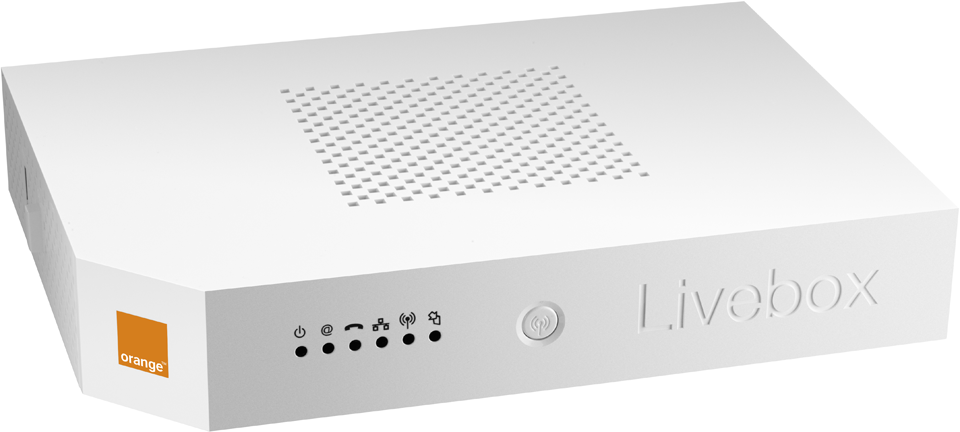
Recently I moved house, and the new place has broadband provided by Telekomunikacja Polska masquerading as Orange. Their broadband deal comes with its own router which also provides the VoIP phone service as well as having something to do with the TV. It’s a Livebox 2.0. It would probably be possible to set up a different router to do the same job, but the thought of getting the VoIP stuff to work is too awful to contemplate.

livebox-2

The Livebox 2.0 is a fairly flexible box, and I managed to set it up to forward traffic on one port to my server. The server has a little script which updates its dynamic DNS entry, and that did exactly what it said on the tin. I could log in to the server from elsewhere on the internet. But could I connect to the server’s public IP address from inside the house? No way. The router just reported ‘no route to host’. This was annoying. I have various things set up on my laptop which assume they’ll be able to connect to my server, and to have those not work when I’m at home would be a real pain.

The problem seemed to be that the Livebox didn’t want to route traffic from the internal network, where my laptop was, to its external IP address. Reading Wikipedia on NAT, it turns out that this is a feature called NAT loopback. I didn’t even know it was possible for routers not to support it, but I learn something every day. The Orange Livebox 2.0 won’t do it (and yes, I played exhaustively with all the security/firewalling/port forwarding options).

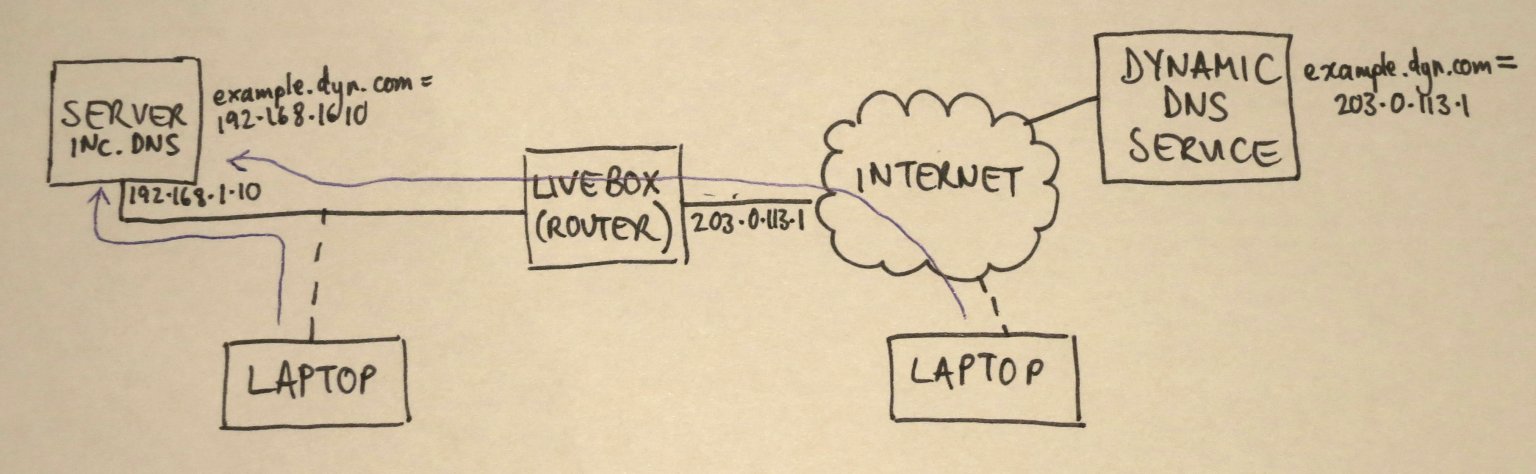
This called for a workaround. My server has a DNS entry with a dynamic DNS provider. Let’s call it server.dyn.com (it’s not, actually). This resolves to whatever the external IP address of my router happens to be – let’s say 203.0.113.1. From inside my home network, the router makes a mess of handling traffic to 203.0.113.1 so I can’t contact it. However, I have control of DNS on the home network: it’s one of the services on my Sheevaplug. I know that ‘spoofing’ DNS entries is bad practice, but I’m going to do it anyway. I can add entries to my local DNS server which make server.dyn.com look up to 192.168.1.10, the local address of the server. The laptop won’t know the difference, but it’ll be able to contact the server. And outside the home network, there’s no chance of anyone, including me, accidentally contacting my DNS server because there’s no way for traffic to get to it. Here’s a picture.

Img_6117s

I use bind9 as my internal DNS server. I added a section to /etc/bind/named.conf.local:

zone "dyn.com" {
  type master;
  file "/etc/bind/db.dyn.com";
};

and then created another file /etc/bind/db.dyn.com:

$ORIGIN .
$TTL 604800 ; 1 week
dyn.com IN SOA localhost. root.localhost. (
  2009060801 ; serial
  604800 ; refresh (1 week)
  86400 ; retry (1 day)
  2419200 ; expire (4 weeks)
  604800 ; minimum (1 week)
  )
  NS sheevaplug
$ORIGIN dyn.com
example A 192.168.1.10

It worked! At home, example.dyn.com resolves to 192.168.1.10, and out on the internet, it resolves to 203.0.113.1. I think it’s far from perfect – the timing settings on my dyn.com record probably need to be made shorter, so that the laptop doesn’t hang on to them when I leave home, and this setup means that all other subdomains of dyn.com don’t work, but it’s good enough for me for now. Maybe it’ll be helpful for you too.

Overheated 300Tdi engine

This blog was originally supposed to be about what’s going on in my workshop. However, this post is about what’s going on in someone else’s workshop – the garage which is currently working on my Land Rover. I’m putting it here because it’s an interesting engineering lesson.

My Land Rover’s 300Tdi engine is very badly broken, and apparently it’s all because of the failure of the ‘P gasket’. This part, which costs £3.24 according to a web search I’ve just done, forms a seal between the engine block and the mounting bracket which holds the water pump, alternator and various other things. It’s supposed to play its part in keeping the coolant inside the engine where it belongs. Trouble is, sometimes it doesn’t. And when the cooling water escapes on the motorway, the engine overheats before you’ve even got time to look at the the temperature gauge. This is an object lesson in the damage an engine can do to itself when it overheats badly.

The first I knew about it was that the engine suddenly lost power and then died altogether. I was only able to drift to the hard shoulder in a cloud of steam and smoke. Once cool, the engine would restart but ran badly, making an odd tapping noise, and the Land Rover’s top speed was about 40mph. It’s no racing car, but it’s not supposed to be that slow.
Cutting a long story short, the head is now off the engine. Here are pictures of what’s inside.

Firstly, cylinder number 4. I think this is the reason that the engine stopped: the piston got so hot that it started seizing in the bore, scoring it badly. The score lines are more than just visible, they’re perceptible with a fingernail, too.

2013-12-05 10.39.12The other cylinders look OK, but one bad one is enough.

Sadly the head gasket has also failed, between cylinders 2 and 3:

2013-12-05 10.39.39That would explain the loss of power. Considering that only one out of the four cylinders was in anything like normal condition, it’s amazing that it still ran at all.

I’ve now spoken to several people who’ve said that if a 300Tdi engine has been overheated this badly, the head will be wrecked as well. The search for a replacement engine is now on.


The BBC Micro linear power supply

The BBC Micro is the machine that really got me into computing. It was designed by Acorn in a tearing hurry for the BBC Computer Literacy Project in 1981 – see the film Micro Men for a great dramatization of the story. Because it was done in such a rush, some things weren’t quite finished for the early machines. One of those things was the power supply.

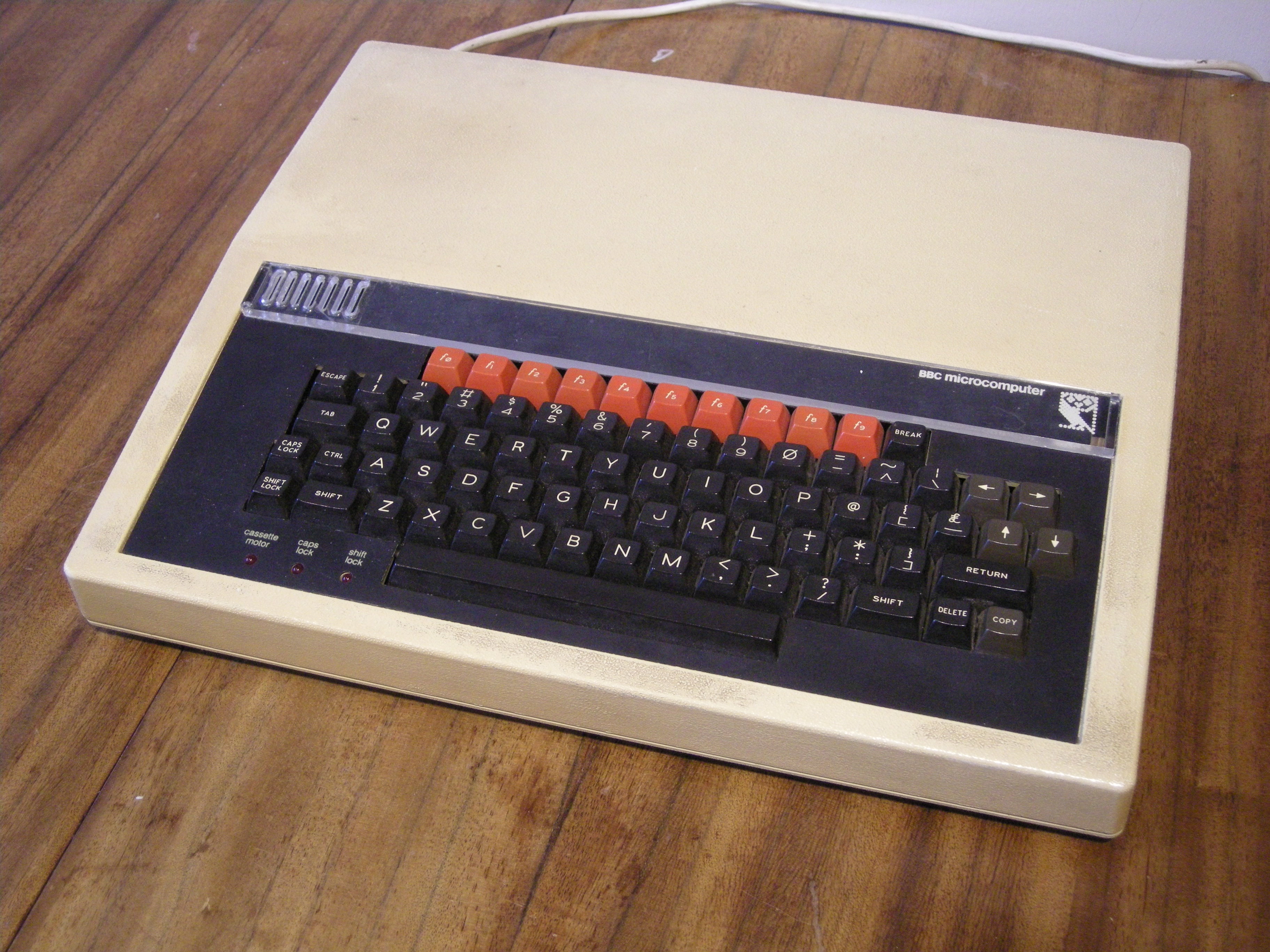
Why is the power supply interesting? Well, later BBC Micros had a perfectly normal, reliable switch-mode power supply, not dissimilar to the one in a modern PC. But early ones had a linear power supply, which gained a fearsome reputation for overheating, exploding, and being incompatible with nearly everything. I recently dragged an early, Issue 2, BBC Micro out of the loft and realised it contained this elusive beast, the linear power supply. I thought I’d see what all the fuss was about.

DSCN8929

First things first: does it work? Well, yes. Despite not having been switched on for probably 20 years, it powered up absolutely fine. Boop-beep. No smoke or flames. Good. Time to see what’s inside.

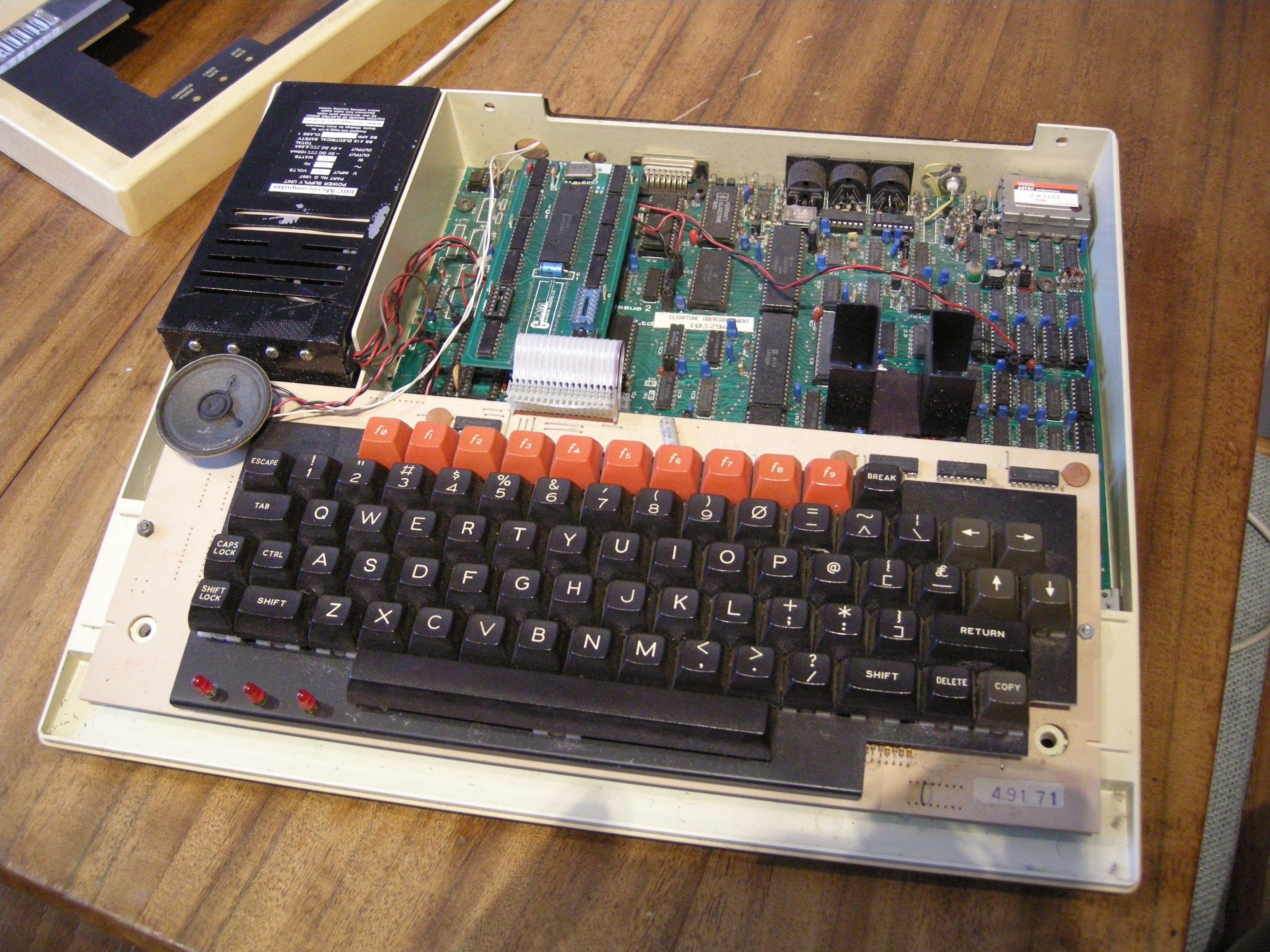
DSCN8933

This particular machine started life as a model A, with just 16K of RAM and very little else. However, it got upgraded at some point into a model B, with the full complement of RAM, and has an unusual Opus double-density disc interface in it as well as a couple of extra ROMs including Wordwise, the word processor. That’s the sort of thing that’s supposed to be impossible with a linear power supply. You can see the black box on the left – later power supplies are a gold colour. Here are a couple of closeups of its labels:

DSCN8939  DSCN8931

I took it out and examined it. The first thing I noticed was that it doesn’t really fit very well: there are some odd washers sandwiched between the power supply and the case, and they’ve used nylon screws to fit it, for some reason.

DSCN8942 DSCN8943

You can probably see from the side view that it’s riveted together. The rivets were quickly dealt with, revealing the insides:

DSCN8948

Pretty straightforward stuff: a toroidal transformer, rectifier and smoothing, and a row of regulators. Here are closeups of the circuit board and regulators. Note the little orange tantalum capacitors. I suspect that’s where the reputation for explosions has come from: when used like this, they do tend to fail short-circuit and go off like little fireworks from time to time. These ones, however, are rated at 35V, so with only 5V or 12V across them they should be fairly reliable.

DSCN8950 DSCN8949

It didn’t take long to trace out the circuit.

DSCN8952

What is interesting is the way the 2.25A output at 5V is achieved. Rather than use one big regulator, they’ve chosen to use three 7805s, rated at 1A each. Three sets of wires leave the power supply and are delivered to three places on the Beeb’s motherboard. There is no connection between the three 5V rails on the motherboard according to my meter. They’re entirely independent. This is good, because it means that the three 7805s won’t end up fighting each other if their output voltages are slightly different.

I took a few measurements while the machine was running. The voltage on the 4700uF smoothing capacitors was 10.5V. The currents delivered by each output were:

VCC1: 0.49A
VCC2: 0.75A
VCC3: 0.84A
-5V: 15mA

I tried removing the disc interface to see what difference that made to the power consumption. It reduced VCC1 to 0.35A and had no other effect.

The total current flowing at 5V is just over 2A, which is sailing fairly close to the wind given that the power supply is only rated at 2.25A. However, nothing in the power supply is under great stress, and I see no reason why it should fail unexpectedly. Unlike a switch-mode supply, it would also be easy to repair. If it was going to be used for a long time, I’d be very tempted to replace the 1uF tantalum capacitors with modern ceramic or electrolytic ones, just because the tantalums do tend to commit suicide randomly with old age.
These machines are now becoming collectable, and early ones like this are worth preserving in their own right. If you’ve got an early Beeb, there’s no reason to fear the linear power supply and replace it. It’s part of the story, and it’s possible to keep it going more or less indefinitely.

Installing balloonboard.org Debian Linux build on a Raspberry Pi

I’ve just successfully got Debian Linux running on a Raspberry Pi, having built it entirely from the balloonboard.org distribution. Why might you want to do this? Well, I did it because it gives me a small, clean Debian Linux installation which I can then customise. Here’s how I did it.

Get the software:

svn checkout svn://balloonboard.org/balloon/branches/menuconfig2
make menuconfig
  • Mode Expert mode
  • Balloon Board Raspberry Pi board
  • Choose which buildroot version to build -> Feb 2013
  • Select kernel version 3.8 (rpi)
  • Select Build boot image
  • Select Build kernel modules
  • Select Build initrd kernel
  • Select Build Raspberry Pi boot patition image
  • Select Build Debian Root Filesystem

Now type make and it should all build.

Create yourself an SD card with two partitions on it: one smallish FAT partition for the boot files, and a big ext4 one for the root filesystem. Don’t forget to format them.

Into the FAT partition copy the contents of build/kernel/rpi-initrd-boot. Into the ext4 partition untar the file build/rootfs/debianrootstrap.modules.tgz.

Now put the SD card into your Pi and switch it on. This should boot into a ‘recovery kernel’ which has a minimal root filesystem in its initial ramdisk, just enough to sort out the ‘proper’ root filesystem. I used the console serial port to work with it. The HDMI and USB ports might also work but I haven’t tried them. It should come up with a login prompt. Log in as root, password rootme.

Now to configure the root filesystem:

mount /dev/mmcblk0p2 /mnt/root
chroot /mnt/root

Finish the Debian installation (this has to be done now because some aspects of it need to run on the ARM processor, so it’s not easy to have your PC do it). It will ask you questions about time zones and things:

/var/lib/dpkg/info/dash.preinst install
dpkg --configure -a

Set a password for the root account so you can log in

passwd root

and add the serial port to the list of secure ports which are considered safe for root logins:

echo /dev/ttyAMA0 >> /etc/securetty

And shut things down

halt

That last step will probably produce an error message, but it doesn’t matter as long as it’s written everything to the SD card.

Now put the SD card back in your PC, and copy the contents of build/kernel/rpi-boot into the FAT partition. That contains the real kernel which will mount the newly-minted root filesystem. Put it back into the Pi and boot. It will ask you to change the root password at first login.

It worked for me, though I had to ‘ifdown eth0’ and ‘ifup eth0’ again to get Ethernet to work. From that point on I was able to install Debian packages normally.

How to get the second Raspberry Pi I2C bus to work

One of the useful interfaces on the Raspberry Pi is the I2C bus. Originally invented by Philips in the 1970s for controlling functions inside consumer electronics, especially TVs, it’s still very handy for connecting up lowish-speed peripherals to computers. Some of the most popular are real time clocks like the MCP7940, amongst many others, and general purpose input-output chips like the venerable PCF8574. One of its convenient features is that it only involves two wires: SCL (clock) and SDA (data).

pi2c

The Raspberry Pi originally exposed one I2C bus on its GPIO connector, P1. It had another I2C bus dedicated to the camera connector, S5. However, with revision 2 of the Raspberry Pi, another connector was added. This was P5, squeezed in next to P1, and it also carried the second I2C bus, making it easier to get at and use. However, for some reason the two I2C buses got swapped over between revision 1 and revision 2. And to add a further layer of complication, the camera connector and P5 are wired to different GPIO pins on the processor, even though they are both logically the same bus. I’ve tried to summarise the situation in the table below.

Revision 1 Revision 2
GPIO0 SDA0 P1 pin 3 SDA0 S5 pin 13
GPIO1 SCL0 P1 pin 5 SCL0 S5 pin 14
GPIO2 SDA1 S5 pin 13 SDA1 P5 pin 3
GPIO3 SCL1 S5 pin 14 SCL1 P5 pin 4
GPIO28 SDA0 P1 pin 3
GPIO29 SCL0 P1 pin 5

Working on the CUED MDP project recently, I had a need to get the both I2C buses working on a revision 2 Raspberry Pi. There was no problem with the one on P5: typing

i2cdetect -y 1

showed the devices I had connected to it. But

i2cdetect -y 0

showed nothing at all, and examining pins 3 and 5 of P1 showed no activity. Disappointing. After a bit of digging, it seemed to me that the standard Raspberry Pi Linux kernel configures the processor to use GPIO 0 and 1 as I2C bus 0, and GPIO 2 and 3 as I2C bus 1. I wanted the bus on P1 to work, so I needed GPIO 28 and 29 to be my bus 0.

The BCM2835 processor on the Raspberry Pi, like most modern integrated processors, can have its pins programmed to do various different functions. In this case I needed to disable I2C on GPIO 0 and 1 and enable it on GPIO 28 and 29. To do this I enlisted the help of Mike McCauley’s BCM2835 library. It makes reprogramming the GPIOs fairly straightforward.

To install the library on your Raspberry Pi, make sure it’s connected to the internet, then:

wget http://www.airspayce.com/mikem/bcm2835/bcm2835-1.26.tar.gz
tar xzvf bcm2835-1.26.tar.gz
cd bcm2835-1.26
./configure
make
sudo make check
sudo make install

By the time you read this, there might be a new version of the library, so check on Mike’s site to see what you’re getting.

The C code to set up the bus looks like this:

#include <bcm2835.h> 

#define BCM2835_GPIO_FSEL_INPT 0 
#define BCM2835_GPIO_FSEL_ALT0 4 

main() {
    bcm2835_init(); 
    bcm2835_gpio_fsel(0, BCM2835_GPIO_FSEL_INPT); 
    bcm2835_gpio_fsel(1, BCM2835_GPIO_FSEL_INPT); 
    bcm2835_gpio_fsel(28, BCM2835_GPIO_FSEL_INPT); 
    bcm2835_gpio_fsel(29, BCM2835_GPIO_FSEL_INPT); 

    bcm2835_gpio_fsel(28, BCM2835_GPIO_FSEL_ALT0); 
    bcm2835_gpio_set_pud(28, BCM2835_GPIO_PUD_UP); 
    bcm2835_gpio_fsel(29, BCM2835_GPIO_FSEL_ALT0); 
    bcm2835_gpio_set_pud(29, BCM2835_GPIO_PUD_UP); 
}

It initialises the library, sets GPIO 0 and 1 as normal inputs (thus disabling their I2C function) and enables GPIO 28 and 29 as alternate function 0 (I2C bus), with pullup enabled. To build it, cut and paste the code into a file. I called it i2c0.c. Then compile it:

cc i2c0.c -o i2c0 -lbcm2835

and run it:

sudo ./i2c0

Now I2C bus 0 will be active on P1. Well, it worked for me. Once the code is compiled, of course, you can just run ‘i2c0’ after booting the Pi.

I realise that in future this will probably be made obsolete by changing the device tree sent to the Linux kernel at boot time, but for now it’s useful!

Lithium Battery Packaging Overkill

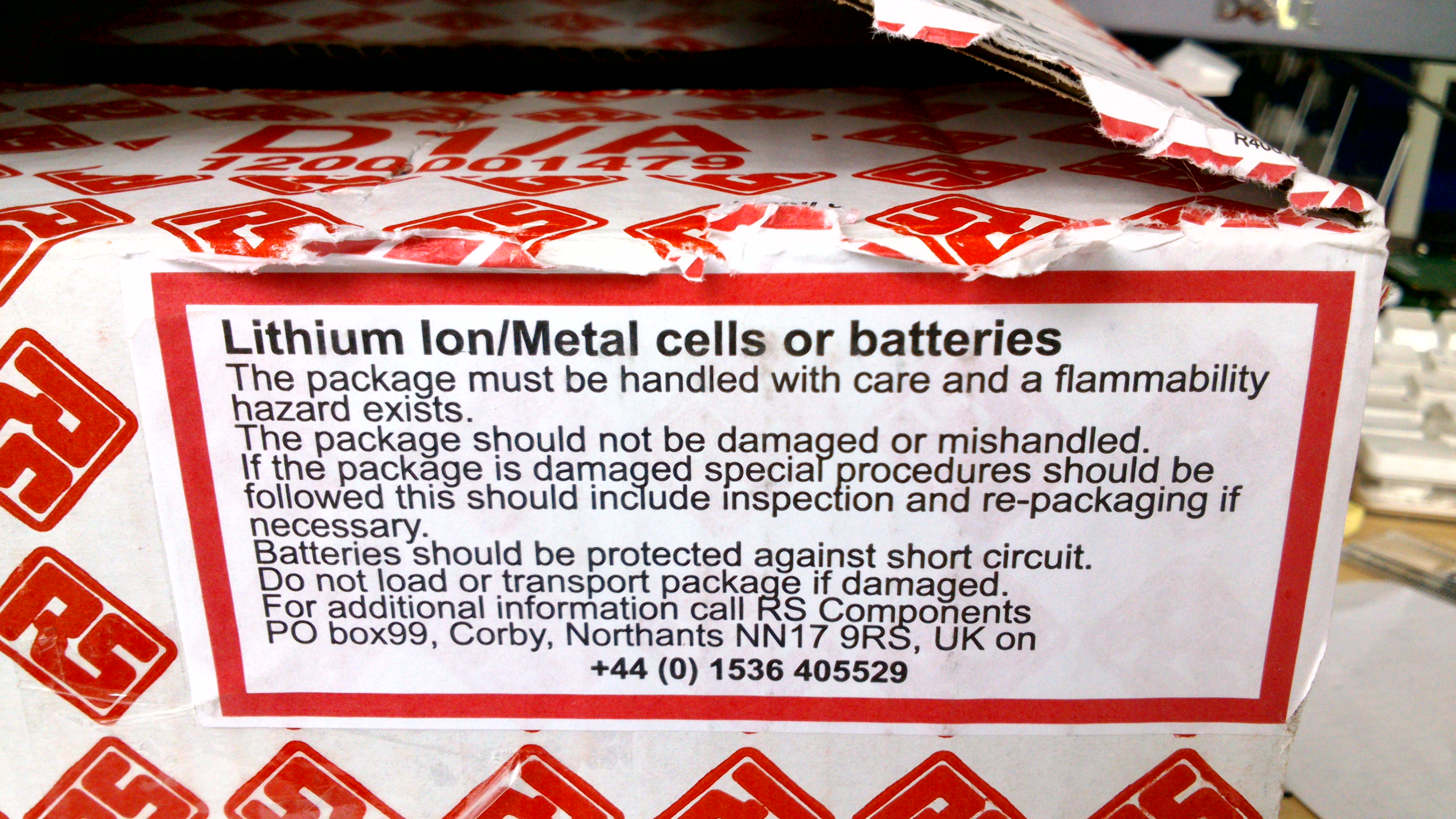
I’ve just received a package of electronic components from RS. The package looked like this (after I’d opened it!):

DSC_0624Ooh! That looks dangerous, especially when you read the label:

DSC_0625So I handled it with care and didn’t set fire to it. Opening it with some trepidation I extracted, carefully, the batteries. They were protected securely inside a pink paper bag. I don’t know if being pink made any difference, though.

DSC_0627Gasp! Three of them! Each nearly half an inch in diameter. I was lucky to get away without serious injury. Imagine the carnage if somehow the parcel had been damaged in transit. There might have been a serious litter hazard as the little plastic bags blew away in the wind.

How does this make any sense? I could probably eat these three batteries without any ill effects. The regulations for shipping batteries have gone mad, which is a pain for those of us who have to work with them.

Oh, and to add insult to injury, they were the wrong sort. I didn’t read the description properly when I ordered them, and I wanted the ones without pins on.


Avometer 8 BLR121 15V battery replacement

The Avometer 8 multimeter has lots of useful ranges, including a special high-resistance range which can measure resistances of up to 20 megohms. This is handy, but it needs a special 15 volt battery. The battery it’s designed for is a BLR121, which was once fairly common but is now dying out. The BLR121 is just about still available but it’s expensive, and since the meter is likely to last a long time I wanted a battery which would also last, and be easy to replace when necessary.

DSCN8944

An old solder reel, a bit of copper pipe, and five common-or-garden lithium coin cells is all it took. The coin cells are CR2032, which are 20mm in diameter, and they fit just neatly inside the solder reel. I cut down the reel to form a tube about 35mm long. The stack of five cells is about 16mm long, so I filled the remaining space with a bit of copper pipe cut to about 22mm long. This is what the assembly looked like:

DSCN8946 DSCN8945

It fitted just neatly into the battery compartment of the meter. The spring contacts are very convenient because you can fit more or less any shape between them!

DSCN8947It works perfectly, and it’s cheap. The CR2032 cells are available for less than 50p each if you shop around, and they have a capacity of around 200mAh. The BLR121 replacements I’ve seen have a capacity of only 40mAh, so the lithium replacement should last about five times longer. Not bad.

Here’s a gratuitous picture of the Avo in use checking the power supply of a BBC Micro.

DSCN8951


Cross-building for ARM on Debian squeeze and lenny

I have to support some software running under Debian Linux 5.0 (lenny) on ARM hardware. The operating system on this hardware can’t easily be upgraded because it’s expensive to get at physically, but there is a mechanism for updating the application it runs. This is an interesting problem in maintaining old software. The ‘stable’ releases of Debian have a reputation for being rather infrequent and almost out-of-date by the time they’re released, but in this case, a release every two years is too often! In embedded applications, having the latest and greatest doesn’t matter as long as it works and doesn’t change.

I have recently had to build a new release of the application software for this ARM hardware. My main Linux machine is now running Debian 7.0 (wheezy), which does a great job of cross-building for ARM, but unfortunately the resulting binaries are linked with libstdc++.so.6.0.17. The old lenny machines have version 6.0.10, which is too old to run these binaries.

For those not familiar with Debian Linux, the relevant versions go like this:

5.0 lenny (released February 2009)
6.0 squeeze (released February 2011)
7.0 wheezy (current as of July 2013)

I fiddled around for a while trying to install older libstdc++ packages under wheezy, but found myself in dependency hell, so I decided simply to revive an ancient PC which was already running Debian 6.0 (squeeze) and press it into service for doing the build.

Getting the ARM toolchain installed wasn’t hard. I had to add the line

deb http://ftp.uk.debian.org/emdebian/toolchains squeeze main

to /etc/apt/sources.list, and do

apt-get install g++-4.4-arm-linux-gnueabi

and it all worked. However, the code I was working on depended on a library, which I needed to install in its ARM version. There’s a handy tool, xapt, which will arrange this for you. However, it’s not natively available on squeeze but has been backported from wheezy, so I had to add

deb http://ftp.uk.debian.org/debian-backports squeeze-backports main

to /etc/apt/sources.list. Then

apt-get install -t squeeze-backports xapt
xapt -a armel libxxx-dev

and my library package was built and installed automagically. Nice.

However, this wasn’t enough. It turned out that I really had to build everything on lenny in order to get it to work – it seems that the libstdc++ from wheezy is compatible with squeeze, but neither wheezy nor squeeze is compatible with lenny.

First, I had to set up a lenny machine. This isn’t as easy as it used to be because lenny is no longer supported by Debian, and exists only as an archive. We should be grateful that it’s there at all. I set up a new virtual machine using VirtualBox and downloaded the last lenny netinst CD image (5.0.10) from archive.debian.org. There’s a problem during installation: it asks which Debian package repository it should use, but all of the available choices fail because the lenny packages aren’t there any more. The solution is to select ‘Back’ and allow it to continue without a repository. It complains, but it works. After it had rebooted, I manually edited /etc/apt/sources.list, commenting out the cdrom line and adding a pointer to the archive:

deb http://archive.debian.org/debian-archive/debian/ lenny main

Then I could install the packages I wanted (subversion, scons and other tools). Now to get the cross-building tools. Sorting out the ARM version of gcc wasn’t too hard. I added

deb http://www.emdebian.org/debian lenny main

to sources.list and was able to install gcc-4.3-arm-linux-gnueabi and g++. Apt complains about a lack of signatures, but that doesn’t stop anything working. I still had to get libssl-dev, though. The xapt tool doesn’t exist on Lenny so I had to use apt-cross, a tool which is an earlier attempt at doing the same thing:

apt-get install apt-cross

and add a source entry to /etc/apt/sources.list:

deb-src http://archive.debian.org/debian-archive/debian/ lenny main

then do

apt-cross -a armel -S lenny -u
apt-cross -a armel -S lenny -i libxxx-dev

and everything happened as it should. Now at last I could build my code and, with fingers crossed, run it on my embedded Debian Lenny machine.

I have to say that I think Debian’s support for cross-building is outstandingly good. Tools like apt-cross and xapt make it much easier than it could be, and the work continues with the multiarch project which improves support still further.