Author Archives: martinjonestechnology

Avometer 8 repair

The Avometer 8 is a British electronics icon. For probably half a century it was the standard high-quality multimeter, found in every factory, workshop and laboratory. Though an analogue meter seems like an anachronism in today’s digital world, it’s still useful for some tasks, and there are decades’ worth of service manuals and test procedures which still call for measurements to be made using an Avo. They only stopped making them in 2008 because some parts were no longer available.

DSC_0570

This one was given to me by a colleague who got it as part of a deal when he bought a secondhand broken TV. I’m not making this up, I promise. It (the meter, not the TV) was made in 1964 according to the serial number. It really didn’t work when I got it. It read about 30% low on all ranges, the pointer kept sticking, and it hardly ever returned to the same zero point on the scale. I was on the point of scrapping it, but decided to save it because it’s got stickers on it from the lab I used when I did my degree, and I was encouraged by advice from the people of the UK Vintage Radio forum. I opened it up:

DSC_0566

It’s clear that everything is hand-built, and should be quite serviceable. The problems with this meter seemed to be in the movement itself – the sensitive, fragile coil suspended by precision bearings in a big magnet – rather than the electronics. The movement is so delicate that I was worried about wrecking it rather than fixing it! However, it’s only held in with two screws, so I could take it out and see what needed doing.

DSC_0568

In the picture above, the movement has been taken out and is standing on top of the rest of the meter. With the benefit of a little advice, and a very handy article from the Amateur Radio Relay League in February 1943 called ‘Rejuvenating Old Meters‘, I set to work.

The gap in the magnet in which the coil is suspended was full of tiny iron filings. They’re not supposed to be there. They get in the way, causing the coil and thus the pointer to stick, and they short-circuit the magnetic field, reducing the sensitivity of the meter. I cleaned them out in the recommended way using a little piece of Blu-tack.

The bearings suspending the armature were way out of adjustment: it rattled and caught on the centre pole-piece of the magnet, again making it stick. I adjusted the bearings, centring the hairsprings and the coil in the gap and just taking up the slack so it could move freely. The bearings in the Avo are sprung, so the armature is never quite rigid, but there should be no rattle in it.

Things were looking up, but there was still a problem. The movement wasn’t balanced, so the position of the pointer was very sensitive to which way up the meter was held. The pointer assembly has three little arms, one opposite the pointer and two perpendicular to it, to which it’s possible to add weights to balance the pointer. It’s a very delicate operation. You have to hold your breath while doing it, since the slightest draught sends the pointer swinging wildly. This picture, reproduced from the Rejuvenating Old Meters article, shows how the balancing is done. First, the meter is set to zero while lying horizontally. Then it’s turned to stand vertically. The tail weight is adjusted with the pointer horizontal, and the side weights are adjusted with it vertical.

meterbalance

I used paint applied in droplets with a tiny screwdriver to add weight. You can see it in this closeup of the movement.

DSC_0558

It doesn’t take much – the balance is incredibly sensitive.

Now to test it. The bare movement is supposed to take 37.5μA for full scale deflection. With a power supply and a resistor, I gave it a current of 37.5μA and it worked! I couldn’t tell whether it was exactly right because the naked movement is so sensitive to draughts that the pointer was never quite steady, but it was close enough for me.

I reassembled the meter, sticking the glass (yes, real glass!) back into the case as I went, and was delighted to find that it was now working – no sticking, it returned to zero every time, and was fairly accurate. It read about 1% low, though. That’s within its specification but I thought it could do better. Fortunately the Avo designers made the meter adjustable to fix such errors. There’s a shunt on the magnet which can adjust the magnetic field a little to compensate for the slight loss of magnetism as it ages. It’s the piece of metal with the slot in it, held by one screw, in this photo of the top of the movement.

DSC_0565

A couple of millimetres to the left was all it took, and the Avo now reads correctly to within 0.5%. Not a bad result, considering the only tools required were a screwdriver, a bit of Blu-tack, and some paint. Try that with a faulty digital multimeter!

Sony Xperia P (LT22i) Jelly bean battery drain

I have a Sony Xperia P (LT22i) phone. Sony have recently updated the software for it, so it now runs Android Jellybean. Last week, I plugged the phone into my desktop PC and the Sony software proudly announced that an upgrade was available. The existing (Ice Cream Sandwich) version had some niggly problems, so I thought upgrading was a good idea. Well, I was almost right.

xperiap

The software build it installed was 6.2.A.1.100. The upgrade proceeded without a hitch, but I soon noticed a problem: the phone’s battery life had become hopelessly bad. I used to be about to use it for 24-48 hours without charging, but now it would discharge itself by more than 50% overnight without even being used. That’s useless. Looking at the power management screen, the application using most of the juice was ‘Phone’. Phone? Surely that’s the one application that they must have tested, right? It turns out I wasn’t the only one with this problem. There are forum threads about it on various sites. Look at this one:

http://talk.sonymobile.com/thread/127636?start=0&tstart=0

After much cursing and head-scratching, I managed to fix it, but the fix isn’t very nice. Basically I used the ‘repair my phone’ link in the Sony PC Companion software, which does a factory reset and reinstalls the software. It’s brutal, but effective.

The process goes like this:

  • do a complete backup of the phone using the PC Companion software. Don’t be afraid of the incredibly long time it takes before it actually starts backing anything up.
  • select the ‘Support Zone’, then ‘Phone/Tablet Software Update’, then use the ‘repair my phone/tablet’ link and follow the instructions.
  • when your phone eventually restarts, get it connected to the internet either by Wi-fi or 3G. Add your Google account to it. Don’t try to restore the backup yet: most of it would fail because the apps aren’t installed yet.
  • on a desktop PC, go to play.google.com/apps and log in with your Google account. It should show, under ‘My Apps’, a list of apps previously installed on your phone. Click on them and set them to be installed.
  • the phone should now download and install the apps you’ve selected.
  • when the apps are restored, restore your backup using the PC Companion software. Again, there’s a long delay before anything happens, but it works eventually. Expect a few error messages if there are any apps you had installed before but chose not to put back. They’re harmless.
  • now spend ages getting everything set up the way you liked it before. Sadly the backup doesn’t keep things like your icon layout, wallpaper, notification settings, ring tones and myriad other little things.

This whole process wastes about half a day, in my experience, which is annoying. But at least my phone works properly again and doesn’t drain the battery. I just wish it hadn’t gone wrong in the first place. More testing needed, Sony, please.

Embedded serial port debugging on the cheap

I do a lot of electronics design and debugging. It’s how I make my living. Most of the things I work on involve embedded computers of one sort or another talking to various peripherals. It could be an 8-bit microcontroller sending data to a simple data logger, or a sophisticated 32-bit Linux system communicating with a wireless modem. Many of these connections involve asynchronous serial ports. If something goes wrong, as it usually does, It’s really useful to be able to see what’s going on with the communications. Here’s a picture of the sort of thing I’m dealing with. It’s a board I designed which contains a load of power electronics as well as a microcontroller and a USB data logger which talk to each other using a serial connection. Note the 175A fuse next to the USB connector!

DSC_0511

Monitoring a serial port on a PC is relatively easy, but the ones I deal with are separate from the PC, stuck on some circuit board on the workbench or buried inside a piece of equipment. To complicate matters, I need to monitor both directions of traffic at the same time, and have some idea of what order things happened in. There are many protocol analyser tools out there which will do all sorts of clever things, but it’s hard to justify them for small projects.

Faced with a such problem to solve recently, I put together a cheap and simple system which allows a developer to monitor both directions of an embedded serial port simultaneously, and have a record of which end transmitted what, when. It consists of a software tool and a bit of hardware.

Software

The software is a simple tool I wrote in C. It compiles and runs under Linux. Given the names of two devices, it opens both of them. It waits for a character on either of them and displays it on the screen in hexadecimal and ASCII. Each device has a separate column. Every time data arrives from the other device, it starts a new line. Each line is timestamped. In this way, it produces a dump of the conversation between the two devices, and it’s clear what order things happened in, and who said what.

It has one other handy feature: it has a ‘-l’ for (‘live’) command line option. In this mode, it will update the display every time a character arrives so you can see occasional data as it happens. This is great for monitoring things like keystrokes. This mode involves a whole load of backspacing and overprinting on the display, so it’s not really suitable if you want to record the output of the tool for later examination. The non-live mode is better for that – it outputs data only when it has a complete line.

Here’s an example session using the software.

hdump2Here you can see that I used stty to set the baud rate of two serial devices attached to the PC. Then I ran the tool (provisionally called hdump2). You can see the data after that. The timestamps are on the left, followed by hexadecimal representations of the data, then the ASCII version. In this case we’re watching the initialisation of a Vinculum USB host controller. The data isn’t guaranteed to be in exactly the right order character-for-character, since it’s had to travel from two serial ports through the operating system, but it’s good enough for debugging.

The source is available to download here:

hdump2-1.0-source.tar.gz

To build it:

tar xzf hdump2-1.0-source.tar.gz
make

It’s free software, licensed under the GNU General Public License.

Hardware

The hardware can be any pair of serial ports suitable to connect to the device under test, but I made a little module which makes it easier. It’s based on an FTDI FT2232H Mini Module. In fact, that’s all it is! There are just a couple of wire links to configure its power supplies and bring the receive pin of each of its two serial ports out to a connector. There’s a load of spare space on my board which I intend to use eventually to fit various useful connectors and buffers to hook up to the different serial port standards I come across.

DSC_0516

The wiring looks like this:

  • Join pin CN3-1 to CN3-3
  • Join pin CN2-1 to CN2-11 and CN3-12
  • serial input 1 is on CN2-10
  • serial input 2 is on CN3-25
  • input ground is on CN3-2 and CN3-4

When plugged in to a PC, two devices (typically /dev/ttyUSB0 and /dev/ttyUSB1, assuming you don’t have any other USB serial ports attached) appear. They can be used as the device arguments to the tool.

Do let me know if any of this is useful to you, or if you have comments or improvements to suggest or contribute.

BeagleBone Black Debian build from balloonboard.org

The Balloon Board project set out more than a decade ago to produce a high-performance, low-power, open hardware embedded Linux computing platform. It successfully did that, and now thousands of them are in use in all sorts of products all over the world.

One of the major achievements of the project was a build system which could configure, download, patch and build a boot loader, kernel and root filesystem using a relatively simple menu-driven interface. The menu allows the user to select which type of board to build for, and which customisations to apply. These can include custom kernel drivers for a particular application, or a different Linux distribution (Debian and Emdebian are supported). It doesn’t need an especially powerful machine to run on, but can make use of multiple CPU cores to speed up building.

My colleague Nick Bane has recently, in collaboration with Cambridge University Engineering Department, updated the build system so that it can build software for the Raspberry Pi and BeagleBone Black, both of which are somewhat newer hardware than the Balloon Board. This should make it easier to port software and device drivers between the boards without having to start with a completely new development system.

It might also be of interest to developers working with the Raspberry Pi and BeagleBone boards who want a simple, repeatable way to create the necessary software. This is especially important for use in manufactured products, where the process for creating a whole software distribution needs to be well understood.

This page describes my first attempts at building Debian Linux and the kernel for the BeagleBone Black. This is extremely preliminary, and it doesn’t work yet,

Software build options

Get the software:

svn checkout svn://balloonboard.org/balloon/branches/menuconfig2
make menuconfig
  • Mode Expert mode
  • Balloon Board BeagleBone Black
  • Choose which buildroot version to build -> Feb 2013
  • Select kernel version 3.8
  • make kernel-menuconfig
  • Select Kernel Features -> unselect Compile the kernel in Thumb-2 mode
  • make buildroot-menuconfig
  • Package Selection for the target -> Hardware handling -> Misc devices firmwares -> unselect rpi-firmware
  • Hardware handling -> unselect rpi-userland
  • Debian rootfs
  • Select kernel and module installation method -> Build Debian rootfs with kernel modules
make

Create Micro SD card

I used a 2GB card in a USB card reader connected to my Debian Squeeze PC. I created two partitions using fdisk. Partition 1 is a 50MB FAT16 (type 6) partition, and partition 2 is the rest of the card formatted as ext3 (type 83). On my system, the card appeared as /dev/sdc.

sudo mkfs.msdos /dev/sdc1
sudo mkfs.ext3 /dev/sdc2

Copy the files MLO, u-boot.img and uEnv.txt from the BeagleBone USB drive to the FAT partition.

Make uboot image

sudo apt-get install uboot-mkimage

In build/kernel, do

mkimage -A arm -O linux -T kernel -C none -a 0x80008000 -e 0x80008000 -n "Linux" -d ImageBoot uImage

copy uImage into /boot on ext3 partition

copy am335x-boneblack.dtb from /boot on the original BeagleBone Black board into /boot on ext3 partition

The board tries to boot, but kernel dies with a stack dump:

## Booting kernel from Legacy Image at 80007fc0 ...
 Image Name: Linux
 Image Type: ARM Linux Kernel Image (uncompressed)
 Data Size: 8750560 Bytes = 8.3 MiB
 Load Address: 80008000
 Entry Point: 80008000
 Verifying Checksum ... OK
## Flattened Device Tree blob at 80f80000
 Booting using the fdt blob at 0x80f80000
 XIP Kernel Image ... OK
OK
 Using Device Tree in place at 80f80000, end 80f88bac
Starting kernel ...
[ 0.113797] platform 53100000.sham: Cannot lookup hwmod 'sham'
[ 0.114013] platform 53500000.aes: Cannot lookup hwmod 'aes'
[ 0.114792] omap_init_sham: platform not supported
[ 0.114807] omap_init_aes: platform not supported
[ 0.156004] omap2_mbox_probe: platform not supported
[ 0.225933] Unhandled fault: external abort on non-linefetch (0x1028) at 0xf4
[ 0.233938] Internal error: : 1028 [#1] SMP ARM
[ 0.238662] Modules linked in:
[ 0.241861] CPU: 0 Not tainted (3.8.0 #1)
[ 0.246424] PC is at rtc_wait_not_busy+0x14/0x50
[ 0.251241] LR is at omap_rtc_read_time+0x10/0xa4
[ 0.256147] pc : [<c03eee84>] lr : [<c03ef490>] psr: 40000193
[ 0.256147] sp : df053d60 ip : 00000000 fp : c08b0f28
[ 0.268112] r10: df053e18 r9 : c07d31e4 r8 : df2b7000
[ 0.273560] r7 : df2b71c8 r6 : c08b0f28 r5 : c083a9cc r4 : 00000000
[ 0.280365] r3 : f9e3e000 r2 : 00000000 r1 : df053dc4 r0 : df101010
[ 0.287172] Flags: nZcv IRQs off FIQs on Mode SVC_32 ISA ARM Segment kel
[ 0.294880] Control: 10c5387d Table: 80004019 DAC: 00000015
[ 0.300873] Process swapper/0 (pid: 1, stack limit = 0xdf052240)
[ 0.307134] Stack: (0xdf053d60 to 0xdf054000)
[ 0.311684] 3d60: df053dc4 df053dc4 df053dc4 c03ef490 df2b7000 c03ebbd8 c08b0
[ 0.320217] 3d80: df2b7000 c03ec884 00000000 00000000 00000001 df053dc4 00004
[ 0.328746] 3da0: df053df4 c084fcd4 60000113 df2b54b0 00000000 00000000 80000
[ 0.337275] 3dc0: c084fcc4 00000000 00000000 00000000 00000000 00000000 00000
[ 0.345805] 3de0: 00000000 00000000 00000000 c084fe34 c08b0f28 00000000 00000
[ 0.354335] 3e00: 00000000 df101010 c07d31e4 df103640 c08b0f28 c03eba44 dfef0
[ 0.362866] 3e20: 60000113 df101080 df101010 60000113 00000004 60000113 0000c
[ 0.371394] 3e40: df101080 df101000 df101010 c08b0f30 df104cc0 c08b0f2c c07f8
[ 0.379923] 3e60: 00000000 df101044 df2ccb80 c084fe78 c084fdf4 df101010 df104
[ 0.388453] 3e80: c084fdf4 c08af648 c07d31e4 c07ddb14 00000000 c031e1cc c084c
[ 0.396982] 3ea0: df101010 df101044 c084fdf4 c031cf88 df052000 c031d014 00008
[ 0.405510] 3ec0: c084fdf4 c031b66c df045478 df104c80 df052000 df001840 df2c4
[ 0.414040] 3ee0: c0841ea0 c031bf14 c0725ca0 c084fde0 c084fdf4 c084fde0 c0847
[ 0.422570] 3f00: c0860608 c031d5fc c0860608 c084fde0 c07ddb4c 00000007 c086c
[ 0.431102] 3f20: c07ddb4c c07eff94 c07ddb4c c0008858 00000006 00000006 c0780
[ 0.439633] 3f40: 00000000 c07efcac c07eff94 c07ddb4c 000000dd c086060c c07a4
[ 0.448163] 3f60: c0860600 c07ac314 00000006 00000006 c07ac3f0 c0cc8d80 c0570
[ 0.456693] 3f80: c0577e98 00000000 00000000 00000000 00000000 00000000 00004
[ 0.465222] 3fa0: 00000000 00000000 c0577e98 c000e6d8 00000000 00000000 00000
[ 0.473751] 3fc0: 00000000 00000000 00000000 00000000 00000000 00000000 00000
[ 0.482280] 3fe0: 00000000 00000000 00000000 00000000 00000013 00000000 b637d
[ 0.490833] [<c03eee84>] (rtc_wait_not_busy+0x14/0x50) from [<c03ef490>] (om)
[ 0.500636] [<c03ef490>] (omap_rtc_read_time+0x10/0xa4) from [<c03ebbd8>] (_)
[ 0.510257] [<c03ebbd8>] (__rtc_read_time+0x58/0x5c) from [<c03ec884>] (rtc_)
[ 0.519423] [<c03ec884>] (rtc_read_time+0x30/0x48) from [<c03ecad4>] (__rtc_)
[ 0.528773] [<c03ecad4>] (__rtc_read_alarm+0x1c/0x290) from [<c03eba44>] (rt)
[ 0.538858] [<c03eba44>] (rtc_device_register+0x140/0x268) from [<c07d3358>])
[ 0.548850] [<c07d3358>] (omap_rtc_probe+0x160/0x3b8) from [<c031e1cc>] (pla)
[ 0.558576] [<c031e1cc>] (platform_drv_probe+0x1c/0x24) from [<c031cdec>] (d)
[ 0.568657] [<c031cdec>] (driver_probe_device+0x80/0x21c) from [<c031d014>] )
[ 0.578459] [<c031d014>] (__driver_attach+0x8c/0x90) from [<c031b66c>] (bus_)
[ 0.587902] [<c031b66c>] (bus_for_each_dev+0x60/0x8c) from [<c031bf14>] (bus)
[ 0.597431] [<c031bf14>] (bus_add_driver+0x178/0x23c) from [<c031d5fc>] (dri)
[ 0.606963] [<c031d5fc>] (driver_register+0x5c/0x150) from [<c031e58c>] (pla)
[ 0.616948] [<c031e58c>] (platform_driver_probe+0x1c/0xa4) from [<c0008858>])
[ 0.626936] [<c0008858>] (do_one_initcall+0x2c/0x164) from [<c07ac314>] (ker)
[ 0.637019] [<c07ac314>] (kernel_init_freeable+0x108/0x1e4) from [<c0577ea4>)
[ 0.646648] [<c0577ea4>] (kernel_init+0xc/0x164) from [<c000e6d8>] (ret_from)
[ 0.655452] Code: e59f6038 e59f5038 e3a04000 e5963000 (e5d32044)
[ 0.661858] ---[ end trace 33e6cc13d62fdb11 ]---
[ 0.666954] Kernel panic - not syncing: Attempted to kill init! exitcode=0x0b
[ 0.666954]

Tektronix 549 Storage Oscilloscope, part 6

In part 5 I repaired the damage I’d done to the ‘enhance’ feature. The ‘locate’ button was the next problem to solve. It was really sensitive and tended to get stuck in the pressed position.

IMG_5007

Its job is to let the user see where the trace has gone, or where it might appear. It’s necessary because the oscilloscope has dozens of controls – probably more than a hundred – and if any of them isn’t set right, the usual result is a blank screen. The locate button helps by squashing the trace in from all four sides and cranking the brightness up to maximum, so you can see whereabouts the beam is pointing. Here’s a picture of a normal trace (a video output from a BBC micro, as it happens) and what it looks like if I move its vertical position way up off the screen and press ‘locate’. You can see that a squashed version of the trace appears near the top of the screen, so I know I should move it down to see it properly.

IMG_4999 IMG_5001

The 549 has an extra feature, though. Because it’s a split-screen storage oscilloscope, it’s expected that it will often be used in single-sweep mode: waiting for a trigger signal, then recording a trace once, then stopping so you can see it. While it’s waiting for the trigger, there’s nothing to see on the screen. It would be helpful to have some idea where the trace will appear when the sweep starts, to make sure it will actually be captured.

Tektronix, typically, thought of this problem. The locate button behaves differently when either of the ‘store’ buttons is pressed. In this mode it simply moves the beam into a special non-storage area on the left of the screen and turns up the brightness but leaves its vertical position unchanged. In this way you can see where the trace will start when it triggers, but without trampling on the storage area. Neat. Here’s a picture of the same video waveform as above, correctly positioned but with the timebase in single-sweep mode, storage enabled, and ‘locate’ pressed. You can see the shape of the trace on the left, out of the storage area.

IMG_5004

Of course, to achieve this, the locate button has several contacts affecting various parts of the circuit. It’s buried deep inside the scope behind the front panel, and is a pain to get at. I managed to remove it and found that one of the brass contacts which also provides the spring action had fractured and actually fell off when I touched it. That would explain why it was getting stuck.

Img_4684

I considered replacing the switch with something else, or a relay, but realised that by dismantling the existing switch (it was strung together like a kebab with two screws), rearranging the contacts a bit and soldering a couple of them together, I could repair it. It took a bit of experimenting with the paxolin spacers until the action was right and all the contacts did what they were supposed to, but it was a success. After reinstalling the switch, which involved some tricky soldering at close quarters, it all worked as it should.

Img_4687

Time for the finishing touches. I gave the case a good clean and got out the tinsnips to make a new cover for the EHT compartment because it was missing. I had to guess what it looked like from photos, but I added an insulating sheet of plastic on the inside to reduce the risk of a high-voltage flashover from the transformer pins or anywhere else.

DSC_0517

DSC_0519

With a quick clean of the case and knobs and a replacement mains lead (the old one was perished and cracked and wouldn’t pass a PAT test) this magnificent machine is ready for use once again.

Tektronix 549 Storage Oscilloscope, part 5

In part 4, we’d got the delayed timebase working thanks to swapping out a pair of 6AU6 valves. But there was still something not working, and it was all my fault. I’d killed the ‘enhance’ feature.

IMG_4690

The 549 is special because it’s capable of capturing an event which takes place in less than a microsecond, and storing it so a human viewer, or a film camera, has time to see it. There’s no digital memory or computer here: the storage is done in the cathode ray tube, directly on the screen. By an amazing feat of electrostatic trickery, it’s possible to put the screen into a mode in which electrons hitting the screen at a point will ‘bump’ the phosphor screen at that point into a different state, and it’ll stay like that – it’s a bistable phosphor. Then, by gently sprinkling electrons all over the phosphor from a flood electron gun, the bits which have changed state continue to glow. In this way, as the electron beam sweeps across the screen tracing out the waveform, it can leave behind a visible trail. It’s possible to erase the trail later by winding up the power of the flood gun for a moment, and bumping the phosphor back into its normal state.

This is some pretty advanced physics, and it’s very analogue: lots of bits of metal inside the tube at precisely-controlled voltages throwing electrons around in a high-speed game of ping-pong so they end up in the right places, with the right energy, at the right time. Tektronix, forever at the bleeding edge, wanted to extract the last possible bit of performance from this finely-tuned and expensive system. As the electrons hit the phosphor, it takes a certain number of them to get it to change state. If the beam is sweeping too quickly, there isn’t time for that to happen, and so the trace doesn’t get recorded. However, it turns out that if the whole screen gets a bit of a ‘kick’ from the flood gun before recording starts, it gets more sensitive for a moment, so it can record faster traces. The specifications quote a writing speed of 5cm per microsecond, which is pretty swift. I reckon it’s roughly equivalent to 100 megasamples per second in a digital oscilloscope. Digital scopes took another 20 years to get that good. The 549 was released before Sgt Pepper’s Lonely Hearts Club Band.

This ‘kick’ to wake the screen up is provided by the enhance feature. A couple of transistors generate a precisely-timed pulse just before the sweep to get the screen ready and poised to catch the electrons. Or, at least, that’s what should happen. It turns out that if a clumsy repairer accidentally short-circuits the 500 volt power supply to the input of the enhance circuit, it dies.

IMG_4660

I killed D1134, Q1135, Q1145 and D1146 in one swift move. The damage stopped there because the next component in line is a valve, which shrugged off such a minor trifle as an accidental half a kilovolt.

The diodes were simple to replace. I used 1N4148s. The transistors looked uncritical enough, and I put a couple of 2N3704s in. But the circuit didn’t work. No pulse came out, and no enhancement happened. I looked again at the design, and it seems that the gain hFE of the transistors, especially Q1135, is critical.

The transistor Q1135 is biased by R1133 and the ‘enhance width’ control R1132. Normally, it should be switched on, and when a negative-going pulse from the trace flyback blanking arrives via C1131 on the left, it should switch off for a moment and generate a pulse. However, the gain of my replacement 2N3904 was too high. The current glowing through R1132 and R1133 was enough to keep it switched on all the time, even when the blanking pulse arrived. Result: no ‘enhance’ pulse output.

The manual says that the original transistor is equivalent to a 2N918, which has a gain of about 50. I didn’t have any of those, and they’re long obsolete. But there’s another half a dozen of them on this board doing other jobs, so maybe I could swap some from there and use my newer transistors for another job. A quick look at the circuit revealed this:

Img_4661

Here are two transistors, Q1033 and Q1043, just being emitter followers from the erase controls. It really wouldn’t matter what their gain was, as long as it was enough. A quick swap and…success! Both erase and enhance worked as intended.

It’s very handy that the transistors in this machine are all in sockets. Interestingly, the old ones look like they’re in TO92 packages:

Img_4663

But their pinout is the opposite way round to modern transistors, which have to sit facing the wrong way in the socket with their legs bent.

Img_4662


So far so good. There are still a few problems to sort out, though. The ‘trace locate’ button is ridiculously sensitive, so you barely have to breathe near the scope and the trace shrinks into a little rectangle in the middle of the screen, which is annoying, and the whole thing is filthy dirty. Timebase A’s triggering seems a bit jittery at high speeds, too.


Tektronix 549 Storage Oscilloscope, part 4

In part 3, the scope was working, with a trace that seemed to do the right things. But the delayed timebase was dead. It’s a handy feature that effectively lets you select a part of the waveform on the screen and zoom in to magnify it, and in today’s digital world it seems almost inconceivable that it was possible to do such things with analogue electronics.  Mind you, it takes quite a lot of analogue electronics to achieve it, especially with valves. The 549 contained an outrageous 53 valves when I counted them. In the photo below, the swung-out panel on the right is basically devoted to the delayed timebase.

IMG_4654

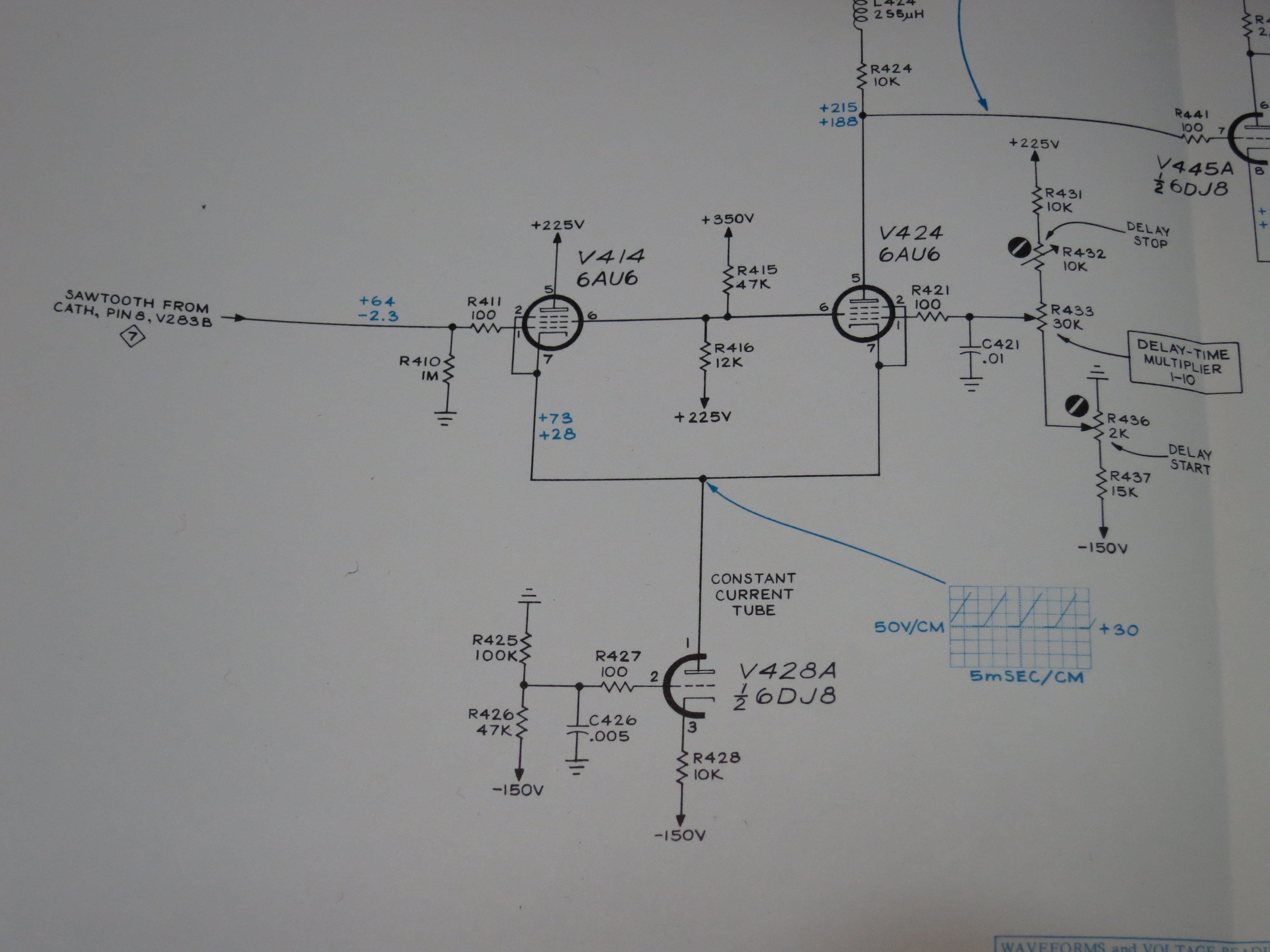
There’s a part of the circuit called the ‘delay pickoff’ which is responsible for selecting which part of timebase B’s sweep to magnify or, more accurately, when to trigger timebase A. It contains a comparator, which compares the sweep voltage as the beam scans across the screen with another voltage, which you set by turning the ‘delay multiplier’ knob on the front panel. When the two match, it sets a flip-flop, which triggers timebase A. In this way, you can choose where on the screen to start the timebase by turning the knob. Handy.

I started probing around with another oscilloscope to see what was going on, or not going on. The circuit diagram in the manual is full of helpful voltage readings and waveforms so you can see what should be there at various points.

IMG_4656In this case, I found that there was a nice sweep sawtooth on the grid of V414 at the left hand side of the diagram, but instead of a sweep on pin 1 of V428A (the blue waveform), I just had about -120V. The grid of V428A was also at about -125V, when it should be held at -100V by R425 and R426. Aha, I thought, R425 has gone high in value! These old carbon resistors do that. So I checked it – no, it’s fine. Then it must be V428A that’s faulty! I even proved it by removing it from its socket, and the voltage at pin 2 returned to -100V. I borrowed a known good 6DJ8 from elsewhere and triumphantly fitted it. Switch on and…no change. Hmm.

If V414 and V424 both have 225V on their anodes and -120V on their cathodes, they’re clearly not conducting much, or they’d probably have melted. I swung open the panel that they’re mounted on and had a look at them. V424 wasn’t glowing, and felt cold! I gave it a wiggle in its socket and it started to glow, and immediately the voltage at its cathode went up to about +30V. Found the problem! But still there was no sawtooth waveform there, just a voltage which varied as I turned the delay multiplier control.

I carefully cleaned the pins and sockets of V414 and V424 but it didn’t help. I thought I’d try swapping them over, to see if anything changed. For no particularly sensible reason, I did it with the power switched on, and I’m glad I did: as I put the second one back into its socket, I noticed purple flashes from inside it! That’s not supposed to happen. One of the 6AU6s is very sick. Here’s the guilty party.

IMG_4657

I borrowed a 6AU6 from another scope, and there was an improvement: the delayed timebase started to work, but the range was all wrong. It would start the delay half way across the screen, and it was impossible to adjust it properly. I replaced the other 6AU6 as well and it worked much better. I was able to adjust the delay start and stop controls so each notch on the delay multiplier knob corresponded to one division on the screen, just as they are supposed to. Here’s a picture of the delayed timebase working. It’s in ‘B intensified by A’ mode, and you can see the brighter section of trace.

IMG_4658

Time to go shopping for a pair of 6AU6s.

Tektronix 549 Storage Oscilloscope, part 3

In part 2 I established that there was something wrong with one of the windings on the replacement EHT transformer, so the grid voltage was either too low, leading to a very dim trace, or too high, leading to a trace which was too bright. The only way to fix this problem was to modify the transformer. Knowing that it’s a tricky device which has to handle high voltages, it was with some trepidation that I took it out of the scope and dismantled it.

IMG_4633

Whoever made the transformer knew what they were doing. They’ve taken care to put a gap in the core to prevent it saturating – notice the plastic washers used as shims between the two core halves. Looking at the circuit design, I believe that this power supply is running as a flyback converter, so a gap in the core is required. Everything is nicely taped up and varnished, and there is paper tape in between the layers of the windings, too, for good high voltage insulation. I was relieved to see all this: it makes me feel confident that a repair is worth doing.

It seemed clear that one winding, the one generating too large a voltage on the grid, had too many turns on it. I had to work out how many turns to remove. I’ve been designing some flyback converters for another project recently, so I could make an educated guess. I’d expect a transformer like this one to run at somewhere around 1 turn per volt, maybe more, maybe less. I want to reduce the grid winding’s output by about 50 volts, so I thought I’d start by removing 20 turns from it.

I put the transformer in the oven to soften the varnish so I could dismantle it (150 degrees C for about 15 minutes). Unwrapping the winding, removing 20 turns was easy – they were all on the first layer, so I only had to unpeel one layer of tape. I temporarily put the transformer back in the scope and tried it. Success! I could follow the instructions for setting the intensity in the manual: set to single sweep, so the trace should be blanked, turn the front panel intensity control to maximum and adjust the internal intensity range control so the spot is just visible. It was well within the range of adjustment of the control.

With the EHT working properly, I checked the voltages: the cathode is fixed at -3700V. For normal trace brightness the grid is at about -3750V, and about -3800V hides the trace entirely.

Incidentally, I was mistaken about how the intensity control works in my comments in part 2. Having studied it more carefully, the EHT supply regulates the cathode voltage to be -3700V. The intensity control varies the voltage on the ‘top end’ of the cathode winding between about +10 and +100V so the power supply has to work more or less hard to maintain -3700V at the cathode. That results in the voltage on the grid winding varying by about the same amount, so the intensity varies.

I also sorted out the horizontal sweep problem. I found a racing car in the relevant bit of the circuit diagram, but it seemed to be missing in the scope itself.

IMG_4631

That wasn’t the problem, though. After checking the voltages around the horizontal amplifier, it became clear that R352, a 402k resistor which feeds a voltage from the normal/magnified registration preset control into the horizontal output stage, was open circuit. I replaced it and the trace looks good now, and can be adjusted properly.

IMG_4629

Now to find out why the delayed timebase doesn’t work. Oh, and I slipped with my high voltage probe whilst checking it on the 500V connection on the storage PCB, and shorted it to another pin, destroying two transistors and two diodes in the ‘enhance’ circuit. Oops.

Tektronix 549 Storage Oscilloscope, part 2

In part 1, I established that this scope was just about working but there was some problem with the high-voltage (EHT) power supply to the tube which was making the trace very dim. The transformer in the power supply is not original, so I don’t know whether it’s correct or has ever worked properly.

The design of the EHT supply in this scope is quite clever. The tube needs about 4kV between cathode and anode to make the electrons fly fast enough to light the screen up. However, there’s lots of metalwork near the anode (especially the deflection plates) which need to be at roughly the same voltage as it. It would be inconvenient, not to mention dangerous, to have most of the scope sitting at 4kV, so instead they put the anode at about 300V and the cathode and grid at -3700V. The electrons don’t know the difference, and the electronics get simpler.

However, there is still a need to change the voltage of the grid relative to the cathode, in order to control the brightness and, for example, blank out the beam on its way back across the screen. The way it’s done in the 549 is to have two separate -3700V power supplies, one for the grid and one for the cathode. Then, by controlling the voltage at the ‘top’ of each power supply separately, we can control the voltage of the grid and cathode independently. The circuit diagram here shows the arrangement.

IMG_4632

T801 is the EHT transformer. The bottom winding feeds the cathode and the top winding feeds the grid. Notice how the intensity control operates on the top end of the bottom winding: by varying the top between about zero and 100V, the bottom of the winding varies between about -3700 and -3800 V.

For this arrangement to work properly, it’s important that the two power supplies are near enough identical. If they’re not quite the same, then the grid and cathode will be too far apart in voltage, and the trace will either be very dim or uncontrollably bright. The good people of the TekScopes Yahoo! group confirmed this theory, and suggested checking whether the power supplies were the same.

A quick way of doing this without disturbing too much was to just swap the connections to the two windings on the transformer. If the transformer isn’t the cause of the problem, this should make no difference to the fault. If the transformer is the problem, the very dim trace should become bright. Switch on, with the intensity controls at minimum just in case there’s a risk of damaging the tube, and:

IMG_4625

A trace! Success. So the transformer is the culprit. Whoever rewound it has not made the two secondary windings quite the same, so I’ll have to modify it. Though there’s now a trace, it’s impossible to extinguish it using the intensity controls, and the spot is still visible during flyback, so the scope isn’t quite usable yet.

Tektronix 549 Analogue Storage Oscilloscope, part 1

IMG_4628

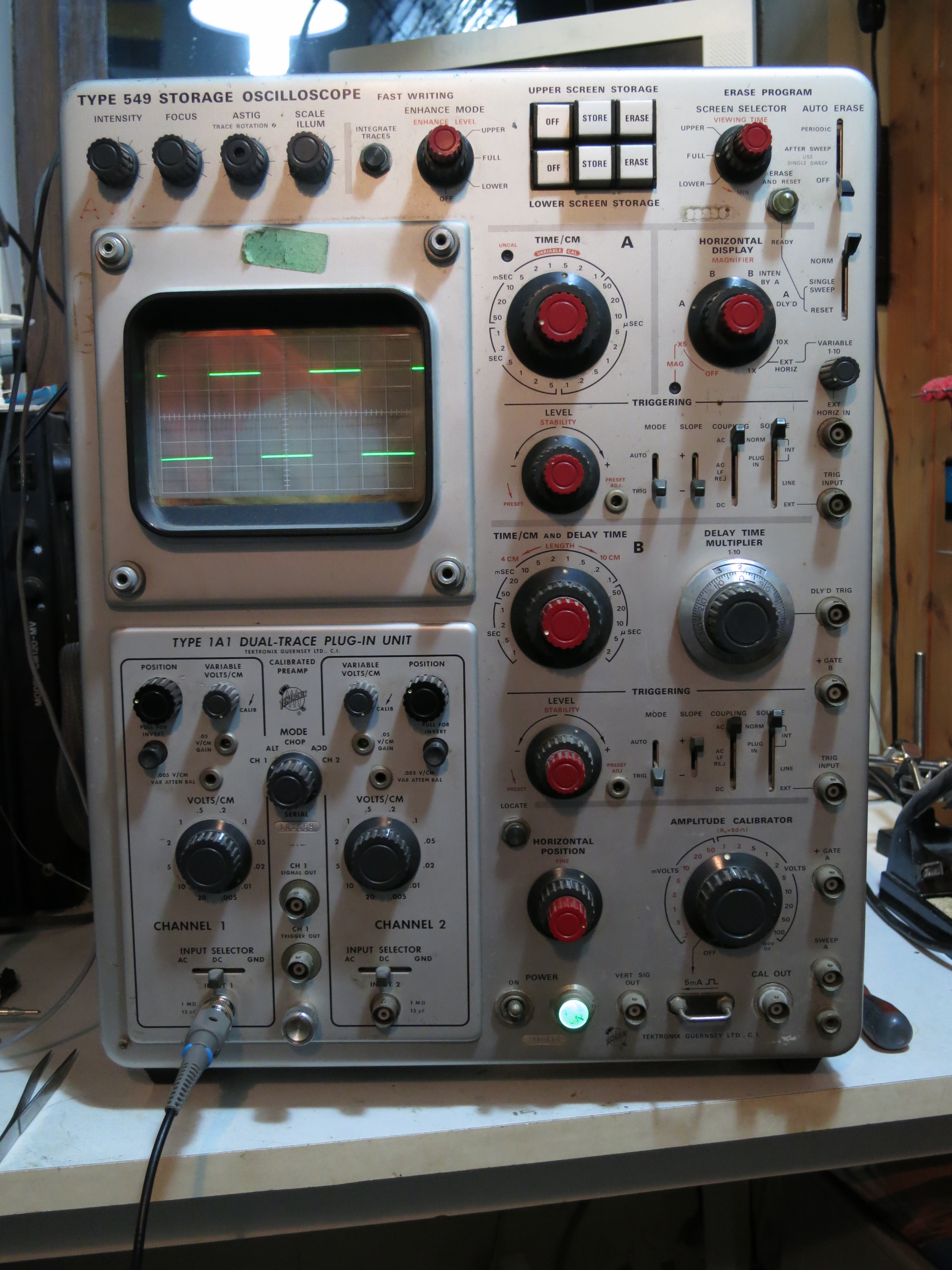
I’ve recently been bringing this beautiful old scope back to life. It’s one of the last models in Tektronix’s legendary 500 series of oscilloscopes, which were in production from the 1950s until the early 1970s. It has the extraordinary build quality and attention to detail of that era of Tektronix equipment, and was seriously expensive. If you had £2000 burning a hole in your pocket in the late 1960s, you could have bought an E-Type Jaguar or a scope like this one. The 549 is particularly unusual because it’s the only one of the 500 series which has a storage tube, so it’s capable of storing any signal you can capture using any letter or 1-series plugin, which makes for a very versatile instrument. It’s also full of cosy, warm, glowing valves.

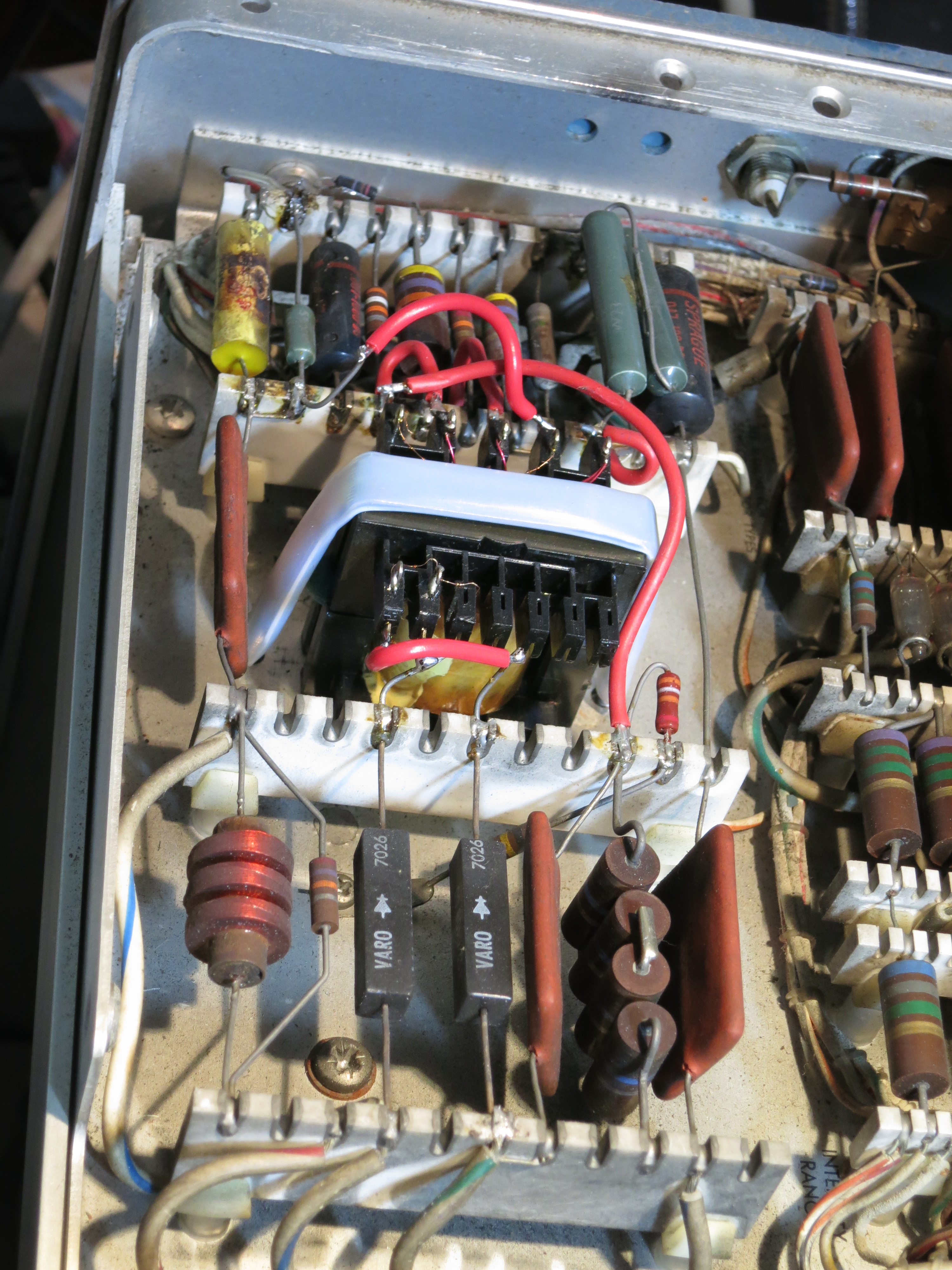
This particular instrument has clearly had some repairs done in the past. There are some untidy diode and resistor replacements in the power supply, and the 4kV EHT supply has had a rewound transformer fitted and various other components replaced. I’d seen it switched on before I got it, but had never seen it produce a trace. The photo below shows the modified EHT supply, complete with new transformer.

IMG_4627

I switched it on for a quick ‘smoke test’. There was no smoke, but little else either: the power indicator and graticule illumination worked, but there was nothing to be seen on the screen even when I set the controls to settings which should show at least a spot.

The first job was to check the power supplies. These Tektronix scopes have an elaborate regulated power supply arrangement which provides -150V, +100V, +225V, +350V and +500V rails. They were all present, if a tiny bit low, but a quick adjustment of the -150V supply (to which all the others are referenced) brought them within spec. So far so good, but still no trace.

It turns out that this scope, unlike the 535A I used to use every day, has transistors in it as well as valves. Though they don’t glow nicely, they still need to get power from somewhere. In this case it’s an extra -12.4V rail I hadn’t noticed before. My meter measured zero volts, which was definitely wrong. The 12.4V regulator only has three transistors in it. Probing around the circuit showed that almost every voltage was wrong in it. The two smaller transistors were in sockets, so I experimentally wiggled them and they both fell off in my hand! Their leads had corroded right through during storage. That wasn’t going to help the power supply work. According to the circuit diagram they were NPN types and didn’t seem to be doing anything exotic, so I  got a couple of trusty BC107s, conveniently in the same TO18 package, and put them in. Switch on – and the 12.4V rail is back. Success.

Now we have a trace! The trouble is, it’s rather dim. Very dim, in fact. And somewhat skewed off to the right hand side – the horizontal position control can’t bring the left hand end of the trace much further than the centre of the screen. But timebase A works, the controls on the plugin (I’m testing using a 1A1 which I know works) do the right things, and the trace can be focused. Even better, the storage functions seem to work: I can record the trace on the screen and erase the upper and lower halves of the screen independently. That means the tube (which is irreplaceable) is almost certainly OK. Curiously the stored trace is much brighter than the ‘live’ one.

But why is the trace so dim? I looked at the setup procedure in the manual, and it turns out that the ‘intensity range’ control is already at maximum. Someone’s been here before. Maybe the repaired EHT supply isn’t working well? I rigged up a pair of AVO 8s in series as an ad-hoc 5kV meter (don’t try this at home, dear reader) and it set easily to the required 3700V. One secondary leadout wire of the replaced transformer has a habit of sparking to ground, so its insulation will need attention. But the EHT is correct, so that’s not the cause of the dimness. More investigation required – see part 2.