Author Archives: martinjonestechnology

Lattice FPGA programming adapter from the junk box

Working with Lattice FPGAs recently, I had a need to program one but couldn’t find my ‘proper’ (Chinese clone, bought from eBay) programming adapter. When I started the Diamond Programmer software, though, it claimed it could see a USB programming adapter. It turned out that I’d left an FTDI ‘FT2232H Mini Module‘ attached to the PC. I use the module for all sorts of little debugging exercises: most often as a dual serial port for serial port debugging, but it also works for programming Parallax Propeller microcontrollers.

Img_0603

As luck would have it, the Diamond software recognises the unadulterated FT2232H as a legitimate USB programmer, and pressing the ‘Detect Cable’ button finds it. Note that if you plug in a new USB device, the Diamond Programmer software needs restarting before it can see it.

The FT2232H has two ports, A and B, and these appear as ports FTUSB-0 and FTUSB-1 in the Diamond software. All that remained was to figure out the wiring. Fortunately, there are a lot of clues in the schematics of various Lattice evaluation boards, particularly the MachXO2 Pico Board and the iCE40 Ultra Breakout Board.

diamond-programmer

Here’s the wiring, both for SPI and JTAG, referred to the pins on the Mini Module. I chose to use port B since it was more convenient for my prototype board. Translating the wiring to port A is left as an exercise for the reader.

SPI    JTAG  FT2232H  Mini Module
SO     TDI   DBUS1    CN3-25
SI     TDO   DBUS2    CN3-24
SCK    TCK   DBUS0    CN3-26
SS_B   ISPEN DBUS4    CN3-21
CRESET TRST  DBUS7    CN3-18
GND    GND   GND      CN3-2,4

It works well, and does exactly what it should.

First steps with a Lattice iCE40 FPGA

I’ve just been doing some work with the iCE40 series of FPGAs from Lattice Semiconductor. They’re small FPGAs, with up to 7680 gates, and they’re very low-power, which is nice for mobile applications. From what I can gather, Lattice acquired the designs when they bought a company called SiliconBlue in 2011. I’ve been used to using the Lattice Diamond software with their other chips, but the iCE40 chips aren’t supported by Diamond. Instead, they get their own software called iCEcube2. It’s a bit of a pain to use and not very well documented. I’ve just been through the process of starting a project and getting a very basic design working, and I’m writing about it here in case someone else finds it useful.

Img_0602

The iCEcube2 software looks convincingly like an IDE, but it isn’t, really. It doesn’t even seem to have a way of creating new source code files, and the order in which some things have to be done is not at all obvious. I think iCEcube2 is really designed for taking existing designs and implementing them on the Lattice iCE40 chips. While the software is a complete dog’s breakfast, it does have the key advantage of being free. You do need to create a node-locked licence for it using their licencing page.

iCEcube-blank

To start an empty project, double click Project -> New Project. Select the chip you’re going to use. This creates a folder with the title of the project, containing:

  • <project>_sbt.project
  • <project>_syn.prj
  • folder <project>_Implmnt, containing folder sbt, containing folders constraint, log and outputs. All are empty apart from iceCube0.log in log folder.

Now you can add your source files. If you click on ‘Synthesis Tool’, then an ‘Add Synthesis Files’ menu item appears, but clicking on this doesn’t do anything useful. You have to right-click on ‘Add Synthesis Files’ and select ‘Add Files…’ from the pop-up menu. Go figure. I used a very simple VHDL source file:

LIBRARY ieee;
USE ieee.std_logic_1164.ALL;

ENTITY test IS
 PORT
 (
 d: in std_logic;
 q: out std_logic;
 qn: out std_logic
 );
END test;

ARCHITECTURE rtl OF test IS
BEGIN

 q <= d;
 qn <= not d;
 
END rtl;

At this point I’d expect to be able to allocate signal names (d, q and qn, in this case) to pins on the device package. But you can’t do that yet in the wonderful world of iCEcube2. All the buttons on the toolbar are greyed out. The way to proceed is to double click ‘Run Synplify Pro Synthesis’. Hopefully your code will compile without errors, and lots of files get created.

The project folder now contains:

  • stdout.log and stdout.log.bak
  • synlog.tcl
  • loads of stuff under <project>_Implmnt

Two new files appear in the project under ‘P&R Flow’: <project>.edf and <project>.scf.

Now double-click ‘Run P&R’. The design will get placed and routed, and a bitmap gets generated for programming the chip.

At this point the toolbar buttons for timing constraints, pin constraints, floor planner, package view, power estimator and timing analysis become active. Hurrah! Now you can change your pin constraints.

iCEcube-toolbar-enabled

Click on ‘Pin Constraints Editor’, the fourth icon from the left. Put in the pin locations for the signals you want. Make sure you click the ‘locked’ checkboxes on the left hand side, otherwise the place and route process is likely to move them. Press ctrl-S to save. The constraints get saved in <project>_Implmnt\sbt\constraint\<top design file>_pcf_sbt.pcf. You will then get asked to add the file to the project. Say yes.

If you’re using source control, it’s a good idea to add this file to it. I’m not so sure about all the other junk that iCEcube generates.

Now double-click ‘Run P&R’ again and the new bitmap file will be generated, using your pin constraints.

Programming an actual chip (or at least its SPI Flash ROM) needs the Diamond Programming tool, which comes as part of the Lattice Diamond software and *not* as part of iCEcube2. That’s just another couple of gigabytes to download, and another licence (free) to acquire, so it’s a pain, but it does work.

Orange Internet and port forwarding, continued

A long time ago, I wrote an article about how I worked around the lack of NAT loopback support on the Orange LiveBox broadband router. At the time, it was a pain to get everything working right. Having just moved house, we made the sensible decision to stay with the same broadband provider, in order to avoid having to re-invent or at least re-configure all this stuff.

Well, it turned out not to be as easy as that. Nothing ever is, it seems. The new Orange broadband service comes with a ‘FunBox‘ instead of a ‘LiveBox’. Fun? Who said? Not in my experience. The web interface to the box looks comfortingly similar to the old LiveBox, so I thought it would work the same way. No chance.

funbox2

What’s the problem I’m trying to solve here? Well, I have a little SheevaPlug which hosts some services I need to use from various locations when I’m working. Yes, I know I should put those services ‘in the cloud’, but that would involve both paying money and solving a whole load of other problems. For years and years, I’ve simply had a port forwarding rule set up on my home broadband router so that the SheevaPlug is accessible from the internet. A little touch of dynamic DNS courtesy of dyn.com and it’s all worked fine.

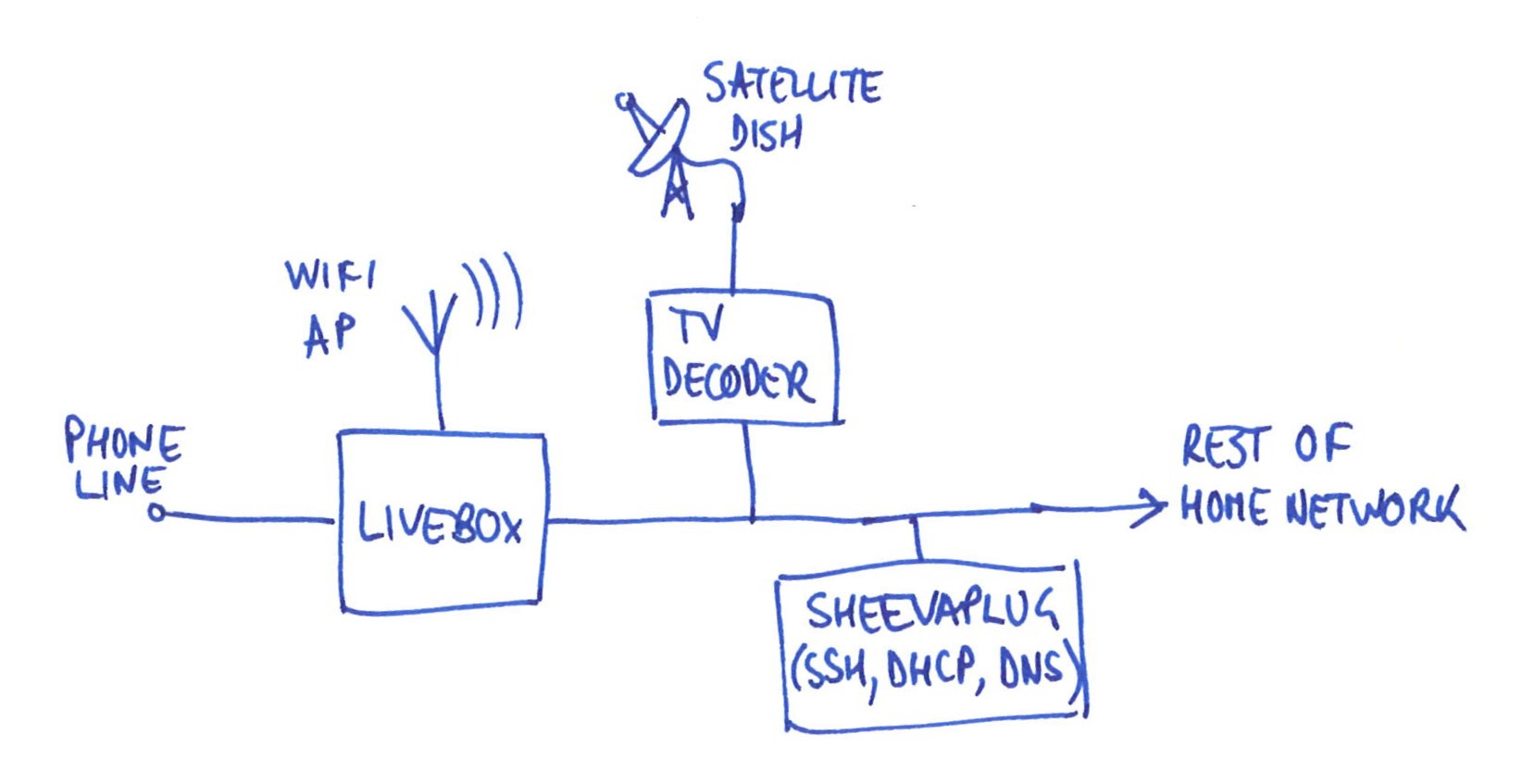
Fast forward to 2015. I tried to recreate the setup I’d always used, but with the FunBox (hah!). The old setup went like this:

home_net_old

  • the broadband router just does the usual NAT routing and behaves as a dumb wi-fi access point. It has a port forwarding rule set up to forward port 22 (ssh) to the SheevaPlug
  • the SheevaPlug hosts my ssh server, and provides the DHCP and DNS services to everything on the network, so I get proper local hostname lookups, easy-to-manage IP addresses, and can solve the NAT loopback problem.

That’s it. I tried to set up the FunBox the same way. What could possibly go wrong?

I boldly switched off the DHCP and DNS servers in the FunBox and switched over to using the ones on my SheevaPlug. Everything seemed to work fine, except…the TV. Yes, the TV decoder is connected to the FunBox via Ethernet, so the whole shebang comes down the wire. No aerial required. Trouble is, the FunBox seems to need to set up the TV decoder by DHCP otherwise it doesn’t know it’s there, so you get no telly. Oh well, I’ll use the DHCP server in the FunBox and put up with the inconvenience.

Even that doesn’t work out. In order to solve the NAT loopback problem, which the miserable FunBox suffers from just like the LiveBox, I need to run my local DNS server. Except that the brain-dead FunBox won’t let you change the DNS settings on its built-in DHCP server. How annoying is that?

OK, accept that NAT loopback will remain a problem. Maybe I’ll find another way round that. Now for the showstopper: the blessed FunBox refuses to forward port 22. It will forward every other port under the sun, but not 22. The web configuration interface just won’t accept the setting: it ignores it. Doesn’t even give an error message. You’re just not having it. Oh well, maybe I have to expose my ssh server on a different port and put up with changing all the gazillion clients which know about it. Except I’ve still got the loopback problem. This is getting unpleasant.

Before tearing out what little remained of my hair by this point, I slept on the problem and had a brainwave. The FunBox supports a ‘DMZ’ feature, in which it’ll forward all incoming internet traffic to a particular IP address on the LAN. I tried it, experimentally sending all internet traffic to the poor, naked SheevaPlug, and it worked! At last, sweet relief: something which does what it says on the tin.

Clearly exposing the server in all its complacent insecurity to the internet isn’t a good idea. I needed to put a firewall in the way. A rummage in the cupboard produced a spare Raspberry Pi and a USB to Ethernet adapter. I programmed OpenWRT on to an SD card and booted up. It turned out to be easier to configure it through the command line than with the web interface, LuCI, which isn’t exactly finished yet. Some fiddling later and I’d managed to disable its DHCP and DNS features and enable incoming connections only on port 22.

Adding the firewall had another bonus: it meant I could re-enable my DNS and DHCP servers and let them look after the LAN without the wretched FunBox knowing anything about it. It just has to live a simple life, looking after the telly and the firewall. I disabled its built-in Wi-fi access point and added an ageing Linksys WAP54G running DD-WRT software after the firewall. Lovely.

home_net_new

There is one fly in the ointment: the Raspberry Pi turns out to make a rubbish router. Our 30 megabit internet connection is reduced to 3 megabits on its way through the Pi. I don’t know if it’s something to do with my configuration, or the release of OpenWRT (15.05-rc3) I’m using. When I’ve unpacked enough boxes to find another router, I’ll try that.

Servicing a Fluke 12 Multimeter

One of my most-used tools on the workbench is my Fluke ’12’ multimeter. I’ve had it almost 20 years, and it’s my favourite meter because it was clearly designed by someone who had to fix things. It’s rugged, especially in its bright yellow holster, and has so many thoughtful features: it has big buttons and a switch, instead of a rotary knob, so it’s easy to use with one hand. It autoranges quickly and reliably. In continuity and resistance modes, it automatically switches to measuring voltage if it detects one, so you don’t need to worry about changing ranges when debugging things. It doesn’t have fiddly extra features. It doesn’t even have a current range, because it would make no sense: measuring current usually involves breaking a circuit, which you can’t easily do when working on a circuit board. It switches itself off when unused for half an hour or so, saving the battery.

Img_0007

It’s been completely reliable apart from needing a new set of test leads last year (for the first time). However, recently the big, chunky buttons had become reluctant to respond, and needed firmer and firmer presses until they didn’t work at all. That meant I was stuck measuring either DC voltage or continuity. Time to pull it apart and see what’s wrong.

Removing the test leads and holster, then taking out the four screws, reveals the view you get when changing the battery. I’m sure Dave at EEVBlog, master of the multimeter teardown, would approve. Lots of chunky components and very solid construction.

Img_0008

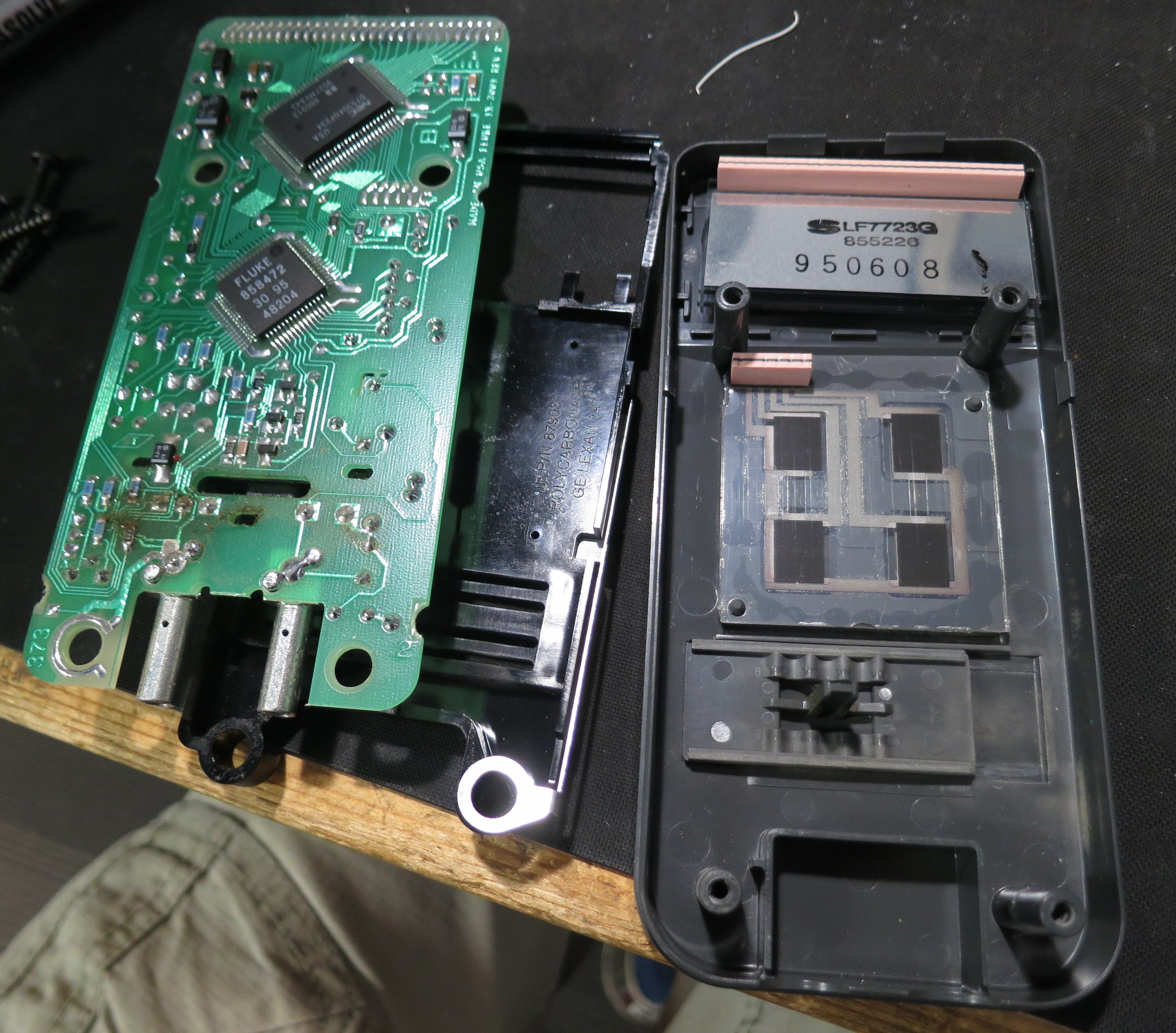
The PCB is held in by the plastic clips at the top and sides. Easing them back lets it and the plastic frame underneath it come out:

Img_0010

The black plastic internal frame (under the PCB in this photo) is marked as being made of polycarbonate, so it’s very strong. None of that high-impact polystyrene rubbish. It’s nice that the membrane for the buttons bears against the frame, not straight against the PCB. This is nice industrial design.

The button membrane is connected by a zebra strip to the PCB. The PCB itself looks nice and clean, and the zebra strip is OK, but the contacts on the membrane look tarnished.

Img_0012

I wanted to test the membrane using the continuity check function of my trusty Fluke 12…oh, hang on, it’s in pieces. Break out the equally trusty Avo 8.

Img_0013

The membrane itself works fine. I cleaned up the contacts using DeoxIT D5 on a piece of paper. I also cleaned all the plastic parts, including the holster, in the office sink with washing-up liquid. Here’s the result, showing resistance mode to prove that the buttons work.

Img_0014

Looking good, working as well as it did when new, and ready for the next 20 years.

Calculating days of the week on a Propeller

I’m doing a project using a Parallax Propeller microcontroller at the moment. It’s like a normal microcontroller, but psychedelic. Eight cores, peripherals defined almost entirely in software, and primarily programmed in a cunning language called Spin. Spin is a very efficient interpreted language and makes it possible to squeeze a lot into the Propeller’s meagre 32K of RAM.

The project has a real-time clock maintained by an off-the-shelf clock chip, but this application needs to know the day of the week as well. Of course, I can get the user to set the day of the week when they set the clock, but it’s unintuitive to have to set it manually, and this thing is supposed to be easy to use.

IMG_0006

I looked in to algorithms for calculating the day of the week given a year, month and date. There are loads of them. The Wikipedia page has lots, and this Stackoverflow page has a load of useful suggestions. There was one particularly simple one which appeared in both places, credited to Tomohiko Sakamoto on the comp.lang.c Usenet newsgroup in 1993. I don’t care about the theory behind the algorithm, I just want it to work and to be simple to program in Spin. The original is in C and looks like this:

dayofweek(y, m, d)	/* 1 <= m <= 12,  y > 1752 (in the U.K.) */
    {
        static int t[] = {0, 3, 2, 5, 0, 3, 5, 1, 4, 6, 2, 4};
        y -= m < 3;
        return (y + y/4 - y/100 + y/400 + t[m-1] + d) % 7;
    }

My Spin version looks like this:

DAT
 dayTable BYTE 0, 3, 2, 5, 0, 3, 5, 1, 4, 6, 2, 4

PRI decFromBCD(n)
 return (n&$f)+10*((n&$f0)>>4)

PRI calcDayFromDate | y
 y := decFromBCD(year) + 2000
 if month < 3
   y--

 day := (y + (y/4) - (y/100) + (y/400)
       + dayTable[decFromBCD(month)-1]
       + decFromBCD(date)) // 7

Mine looks more complex, and the one reason for that is that the clock chip maintains its counts in BCD (binary-coded decimal) rather than straight decimal. There might be a cunning way to modify the algorithm to take BCD values directly, but I took the easy route of implementing a function which converts an 8-bit BCD value into decimal.

The code assumes the presence of three variables: year (0 to 99, starting at the year 2000), month (1 to 12) and date (1 to 31) and sets a variable day in the range 0 to 6, where 0 is Sunday.

When implementing the clock in your project, don’t forget to compensate for the leap second tonight.

Solidlights new LED upgrade

The first Solidlights products to be sold used the Lumileds Luxeon III LEDs, which were state of the art back in 2003. Technology has moved on since then, however, and modern LEDs are much more efficient – they produce a lot more light for the same amount of electricity. Though I’m no longer actively developing Solidlights, I occasionally tinker with upgrades to the ones I use regularly.

For a year or so now I’ve been using a modified Solidlights 1203D dynamo light fitted with Cree XP-G2 LEDs. Getting the best from them requires modifications to the lenses, too, but it’s worth it: the theoretical maximum light output from each LED is 488 lumens, whereas the old Luxeon III could only manage about 80 lumens. I’ve done the modification informally for a couple of customers, too, and they’ve been happy with it.

xpg2

There’s been more interest recently, so I’ve made this upgrade available in the Solidlights on-line shop. It’s listed as part number 99002 under ‘service and repairs’.

Solidlights seal upgrade

It’s been nearly five years since I sold the last Solidlights product, but there’s still a steady stream of requests for spare parts, servicing and upgrades from loyal customers. Over the production run of Solidlights I made various improvements, especially to the water sealing. This turned out to be particularly important on the 1203D dynamo-powered light: who’d have guessed that commuters and tourers would give their lights a much tougher time than mountain bikers? Well, they did.

Nowadays I routinely fit the upgraded water seals to every light that comes in to the workshop. Because Solidlights customers include many enthusiastic DIYers, I thought it was about time I published details of how the upgrade is done, so here they are.

Parts for the upgrade will be available in the Solidlights on-line shop.

Seal Upgrade Instructions

These instructions describe how to upgrade the seals on a Solidlights 1203D, 1203DR or XB2 to the latest production specification, or replace damaged ones.

Parts

The following parts are required:

  • 1m silicone rubber sealing strip 0.5mm, part number 30092
  • 8 off O-ring 1.8” Viton, part number 30072
  • 8 off screw black stainless self-tapping #6, part number 30071

Tools Required

  • Cross-headed screwdriver (Posidriv No.2 or equivalent)
  • Marker pen
  • Fine rectangular engineer’s file
  • Vice
  • Jeweller’s screwdriver, tweezers or similar for scraping old seals away
  • Flush wire cutters or sharp craft knife

Dismantling

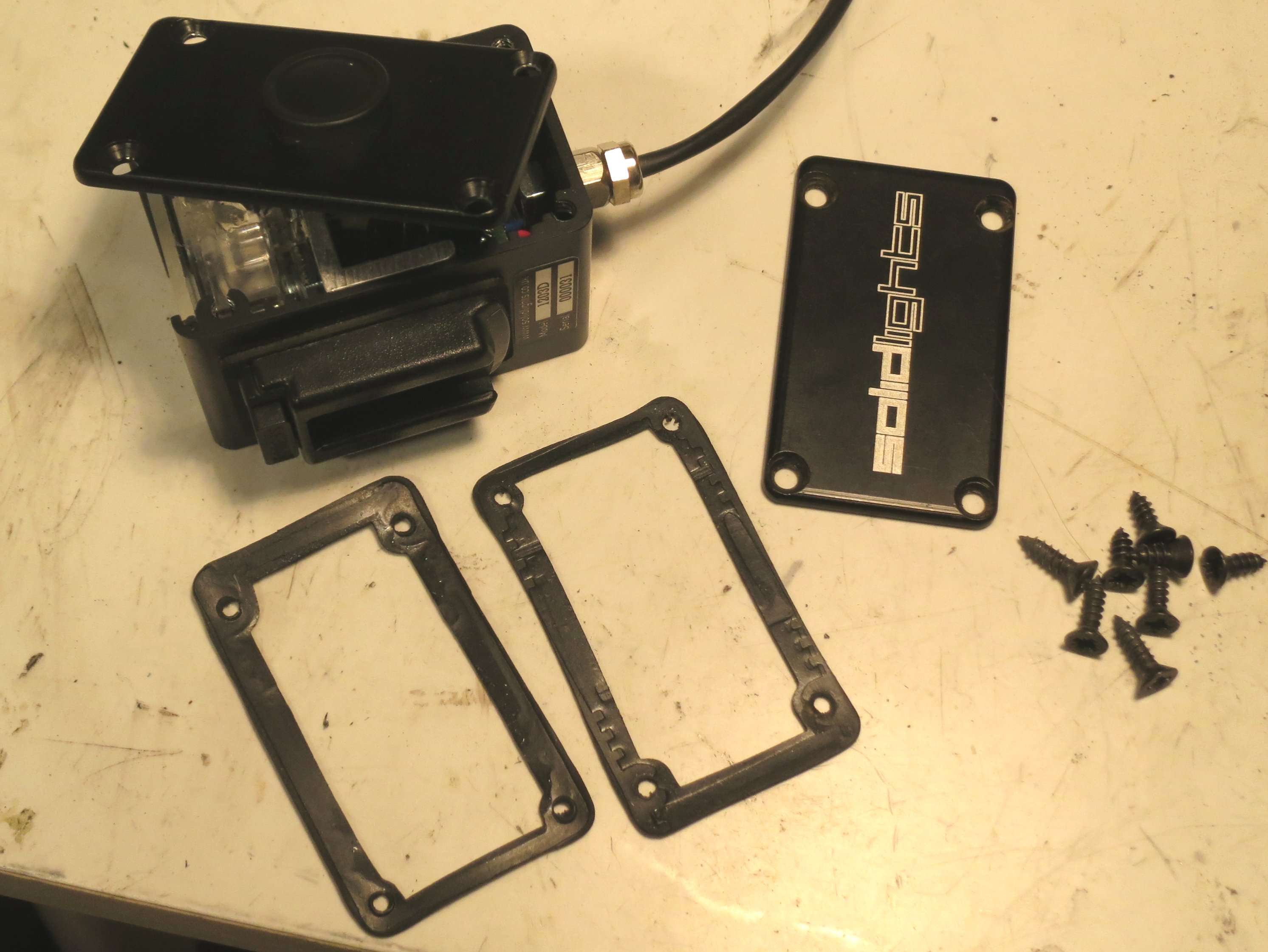
Remove both side panels from the light by unscrewing all eight of the screws.

Img_8493

Discard the old screws and o-rings, if fitted, but keep the two rectangular gaskets. One side panel will remain attached to the light by the wiring to the button. Take great care not to damage the wiring by pulling or bending it excessively.

Img_8494

Gently pull apart the front of the light by hand and slide out the front window.

Img_8495

Check what type of seals are fitted at the top and bottom of the front window.

If they are the pale yellow-coloured silicone rubber type, no modifications are necessary. Simply remove and discard the old seals ready to fit new ones later.

Img_8498

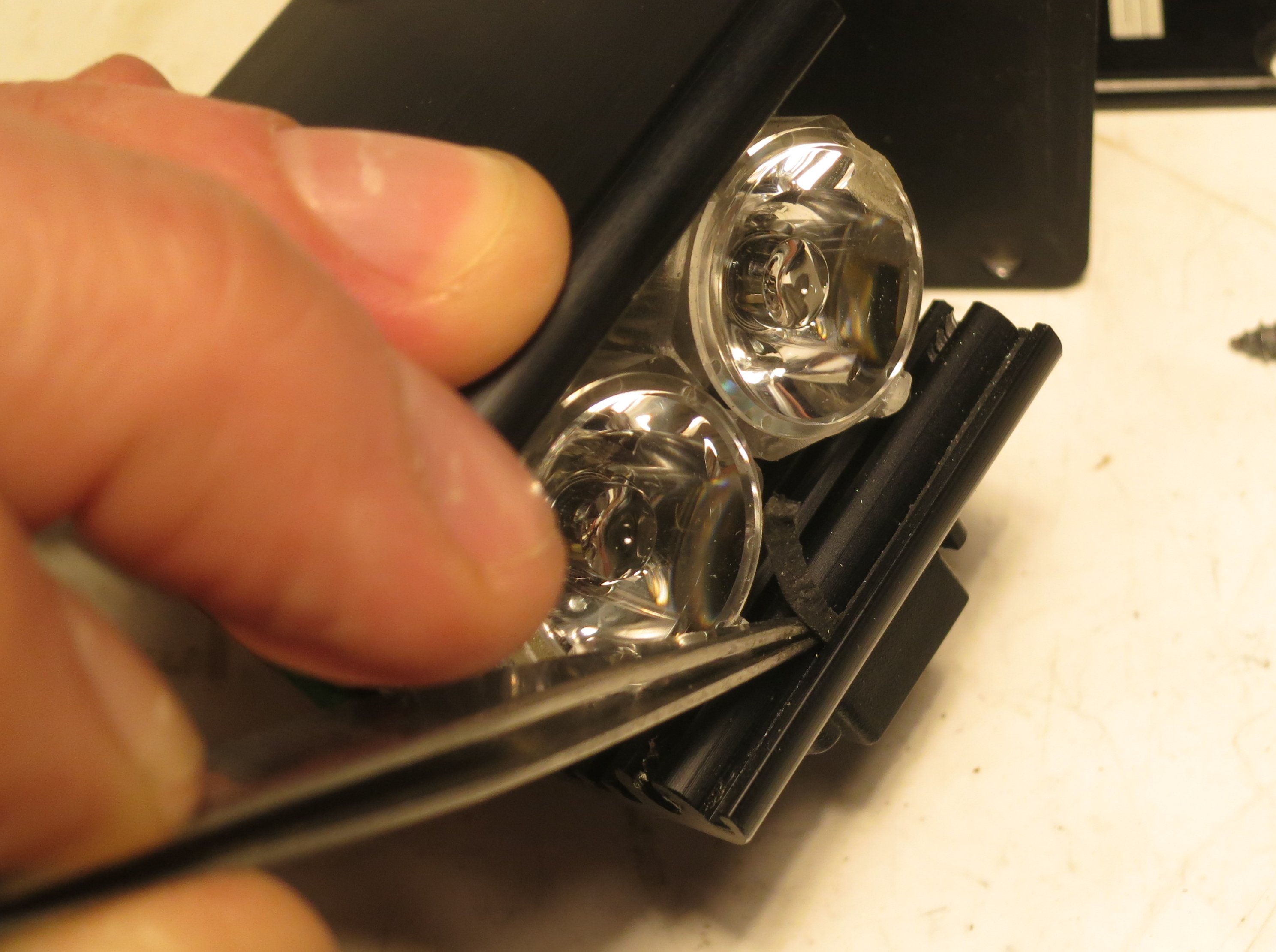
If the seals are the black neoprene foam type, they may have been crushed so much that they are almost invisible. The seals are self-adhesive and may be firmly stuck to the inside of the grooves in the light.

Img_8497

Carefully scrape away all traces of the old seals using a tiny screwdriver or tweezers. Gentle heat may help.

Img_8500

Modifying the front window

If the light had the black neoprene foam seals, it will be necessary to modify the front window. The new seals take up more room, so the window needs to be about 1mm smaller.

THIS IS NOT NECESSARY IF THE SEALS AREADY FITTED WERE THE YELLOW SILICONE RUBBER TYPE.

Use the marker pen to mark a line about 1mm thick along one long edge of the front window.

Img_8507

Clamp the window firmly in a vice, using some paper or similar to stop it getting scratched, and file away the marked area. Make sure the edge you leave is straight and smooth, because it has to form a good seal. Use fine emery paper or wet-and-dry paper if necessary.

Img_8509

Reassembly

Lay the rubber seal in to the bottom front window groove. Leave a few millimetres sticking out of one end, and cut off the other end also leaving a few millimetres sticking out.

Img_8512

Place the front window into the groove on top of the seal, making sure it’s lined up correctly with the sides of the case.

Img_8513

Now, holding the window in place with one hand, turn the whole case over and slide the other seal into the opposite groove.

Img_8514

Gently pull the casing apart to allow the window to get into the groove on top of the seal. The springiness of the case will hold everything in place.

IMG_8515

Use sharp flush cutters or a craft knife to cut off the ends of the seals, leaving about half a millimetre sticking out.

IMG_8516

Put one o-ring on to each screw.

Img_8520

Place the first side panel in place with its gasket correctly positioned.

DO NOT USE ANY SEALANT OR LUBRICANT ON THE GASKET OR O-RINGS.

Carefully insert each screw. You may have to squeeze the case together, either by hand or in a vice, to get the screw holes to line up with those in the side panel. As you turn the screws, make sure the gasket doesn’t get twisted out of place. Squeezing the side panel against the case will help to hold the gasket in position.

IMG_8524

Do not overtighten the screws: tighten them only until the side panel is held snugly in position. Overtightening will push the o-rings out of place.

Img_8526

Sideways RAM for BBC Micro Model B+

There’s an excellent article by Mark at RetroClinic on adding 32K of Sideways RAM to a BBC Micro with just a couple of track cuts and wires. I’ve performed it on a BBC Model B, in order to replace a Solidisk SWR which never worked reliably even when it was new, and the modification works well. However, I wanted to do it on the BBC B+ I use in the office, and the details are slightly different.

The first thing to note is that the B+’s sideways ROM sockets are conveniently already wired to support 32K chips (27256 EPROMs). There is a row of links to the left of the ROM sockets which select whether each socket is configured for a 16K chip or 32K chip. Each link just selects whether pin 27 (A14 on 27256, /PGM on 2764 and 27128) is tied to +5V or connected to the bottom bit of the ROMSEL register IC45. If the link is to the left, pin 27 is tied high, and if it’s to the right, it’s an address bit. To be honest I can’t see any reason not to leave them all to the right all the time, since pulling /PGM low on 2764 and 27128 chips seems to have no effect other than disabling the chip. However, on my B+ they were all set to the left by default.

The layout of the parts on the board is:

    +------+ +------+ +------+
S19 |      | |      | |      |
S18 | IC62 | | IC68 | | IC71 |
S15 | ROM  | | ROM  | | OS & |
S12 | banks| | banks| | bank |
S11 | 8/9  | | A/B  | | 1/F  |
S9  |      | |      | | BASIC|
    | (S15)| | (S18)| | (S19)|
    +------+ +------+ +------+
    +------+ +------+ +------+
    |      | |      | |      |
    | IC35 | | IC44 | | IC57 |
    | ROM  | | ROM  | | ROM  |
    | banks| | banks| | banks|
    | 2/3  | | 4/5  | | 6/7  |
    |      | |      | |      |
    | (S9) | | (S11)| | (S12)|
    +------+ +------+ +------+

Note that S19 (for IC71) behaves a bit differently. IC71 is always the OS ROM, which is not a sideways ROM, but can be a sideways ROM (in bank 1 or bank F) as well. If S19 is placed to the right, IC71 should have the OS in the top 16K and a sideways ROM image, conventionally BASIC, in the bottom 16K. Which bank this ROM image ends up in depends on the setting of S13. If S13 is set ‘north’, the lower half of IC71 appears in bank 1. If it’s ‘south’, it appears in bank F. Normally bank F is convenient for BASIC.

The key ingredient of the sideways RAM upgrade is to provide a write enable signal to the RAM chip. This isn’t normally present on ROMs because it makes no sense to write to a ROM. The RetroClinic upgrade takes a write signal from IC77 pin 8. This is the write strobe for the uPD7002 ADC and the 8271 floppy disc controller. The corresponding signal still exists in the B+, and is used by the ADC and the 1770 floppy disc controller. It comes from IC27 pin 6, however, which is conveniently close to the ROM sockets.

However, there’s an annoying difference between a 27256 32K EPROM and a 62256 32K RAM. The EPROM has A14 on pin 27, but the RAM has A14 on pin 1 and /WE, the write enable signal, on pin 27.

On the Model B, it’s not hard to cut the tracks to pins 1 and 27 and solder wires on the bottom of the board. However on the B+, the tracks to those pins are on the top of the board, mostly concealed by the socket, and are a royal pain to get to. I could have desoldered the socket, done the modifications and put it back, but that was relatively risky and a lot of effort. I decided to just take pins 1 and 27 of my RAM chip outside the socket and run a wire from pin 27 to IC27 pin 6, and pin 1 to IC45 pin 14 (the source of the address line), on the top of the board. Here’s what it looked like.

DSC_1094

My final discovery was that the Sideways RAM utilities are provided by the 1770 DFS ROM. My B+, however, only had DFS version 2.10, which doesn’t include them. I programmed a ROM with DFS version 2.26, and took the opportunity to shuffle the existing ROMs into 32K chips to save sockets.

This done, the SRAM commands were now available, but the Sideways RAM wouldn’t work. I’d put my RAM chip in socket IC57, which is banks 6 and 7. It seems that the B+ and DFS SRAM utilities only understand about Sideways RAM in the banks which the B+128 would have it: banks 0, 1, C and D, exactly the banks which are not covered by the ROM sockets. Doh!

I needed to move my RAM chip to appear in banks 0 and 1. This was easily accomplished by moving pin 20 outside the socket and soldering a wire from it to IC46 pin 15. IC46 is the address decoder for the ROM sockets, and pin 15 is its /0 output.

Now, when switched on, the machine shows ‘Acorn OS 96K’ (cute!) instead of its previous ‘Acorn OS 64K’, and the *SRLOAD command works to load images into banks 0 and 1.

Img_8121s

In summary, to add 32K of Sideways RAM to a BBC B+ 64K:

  • Move S12 into its right-hand position
  • Bend pins 1, 20 and 27 of a 62256 RAM chip so they fall outside the socket
  • Put the chip with bent pins into socket IC57
  • Solder a wire from pin 1 to IC45 pin 14
  • Solder a wire from pin 20 to IC46 pin 15
  • Solder a wire from pin 27 to IC27 pin 6
  • Make sure your DFS is version 2.26

Now you have Sideways RAM in banks 0 and 1. Job done.

IMG_8120

Dealing with Shellshock on Debian Squeeze for ARM

Today’s announcement of the Shellshock Bash vulnerability had me worried. I run lots of Debian Linux systems, and they’re not all the latest version. Many are still Debian Squeeze (version 6) which no longer gets security updates as standard. That’s my fault, of course, and I should have upgraded, but I haven’t. Yet. Now I’m more motivated to do it. However, upgrading to Debian Wheezy (version 7) isn’t something I wanted to do in a hurry, especially on remote machines.

Debian have thought of people like me, and there is a ‘Long Term Support‘ option for Debian Squeeze, which is great, and includes the necessary security update to Bash. The trouble is, it only supports i386 and amd64 processors, and the machines I’m worried about are ARM (specifically armel) ones.

I was left with one option: build the new Bash from source. Fortunately, Debian Squeeze LTS has the source available, so I was able to do this. Here’s how. This might be useful to other Debian ARM users who are none too fastidious about keeping up to date.

I added the line

deb-src http://http.debian.net/debian squeeze-lts main contrib non-free

to /etc/apt/sources.list, and did

apt-get update
apt-get source bash

which fetched the source code. Then I had to build it.

cd bash-4.1
dpkg-buildpackage -b -us -uc

This complained bitterly about a load of missing dependencies, which I dealt with:

sudo apt-get install autoconf autotools-dev bison libncurses5-dev debhelper texi2html gettext sharutils texlive-latex-base ghostscript

which was a royal pain due to lack of disc space. Beware, these packages want about 180MB of disc space (plus about 80MB for the package downloads) so might need some care on a small system. I started by installing packages individually, doing ‘apt-get clean’ after each one, but texlive-latex-base is an absolute monster and I had to do some filesystem reshuffling to get it to install. I hope you don’t have to.

During the build (repeating the dpkg-buildpackage command above) the patch for ‘CVE-2014-6271‘ was mentioned, which was reassuring. The actual build process took a while – about half an hour on a 1GHz-ish ARM chip (a SheevaPlug).

The build completed successfully, so I was able to install the new package:

cd ..
sudo dpkg -i bash_4.1-3+deb6u1_armel.deb

and then start a new shell and try the test:

env X="() { :;} ; echo busted" `which bash` -c "echo completed"

on a ‘broken’ version of Bash, this will print

busted
completed

but on a fixed one, it prints

/bin/bash: warning: X: ignoring function definition attempt
/bin/bash: error importing function definition for `X'
completed

which is the right answer, and means that the vulnerability is patched. It worked!

I hear that the fix isn’t complete, though, so more work may be required later.

That syncing feeling: classic arcade games that won’t stay still

I’ve got a collection of classic arcade games from the ‘golden era’ of the early 1980s. They’re not the whole wooden cabinets with flickering lights and cigarette burns, but just the circuit boards from inside. They are easy to store and easy to plug in to a joystick and monitor to play.

However, some of them have always been a bit tricky to see. The monitor I use, a spiffy Microvitec bought surplus from Display Electronics in 1990, has fantastic picture quality but is a bit fussy about its input signal. Specifically, it seems to expect that the sync pulses – the bits of the signal which indicate where lines and pictures start – must conform more-or-less closely to broadcast standards. Unfortunately, the people who designed the old video games weren’t too worried about complying with standards. The result is that, on my monitor, some games tend to flicker and roll, or require very finnicky adjustment of the controls.

There’s loads of information about what video sync pulses are supposed to look like on the web.  This link has plenty of detail. However, the important things here turned out to be that the horizontal sync pulses should be fairly close to 4.7 microseconds long, and the vertical sync pulses should be pretty much three lines, or 192 microseconds, long.

I compared the outputs of various games – one which had never given problems (Mr Do’s Castle) with three which were troublesome (Phoenix, Pleiads and Q*Bert). The results were interesting. Here’s the vertical sync period from Mr Do’s Castle:

mrdocslv

In all the scope pictures, the red trace is the sync output from the game, and the blue line is the vertical sync from my electronics which I’m just using to trigger the scope at the right time.

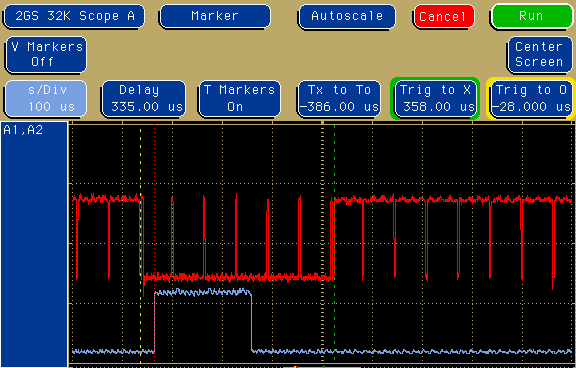
In this case, the narrow red pulses are the horizontal sync pulses, and the broad area between the dotted lines is the vertical sync pulse. It’s six lines, or about 386 microseconds, wide, which seems to be good enough to keep the monitor happy.

Examining Pleiads and Phoenix, which have the same video electronics, here’s the horizontal sync pulse:

pleiadsh

Oh dear, It’s only 3 microseconds wide when it ought to be 4.7. And the vertical sync pulse?

pleiadsv

It’s a full eight lines wide, or more than 500 microseconds. Those numbers are way off what the monitor is expecting. The result is that the monitor refuses to give a stable picture, which makes playing the game very tricky:

Img_7793

Looking at Q*Bert, its horizontal sync pulses are nearly three times as wide as they should be, at 12.6 microseconds:

qberth

and Q*Bert’s vertical sync pulse looks like this:

qbertf

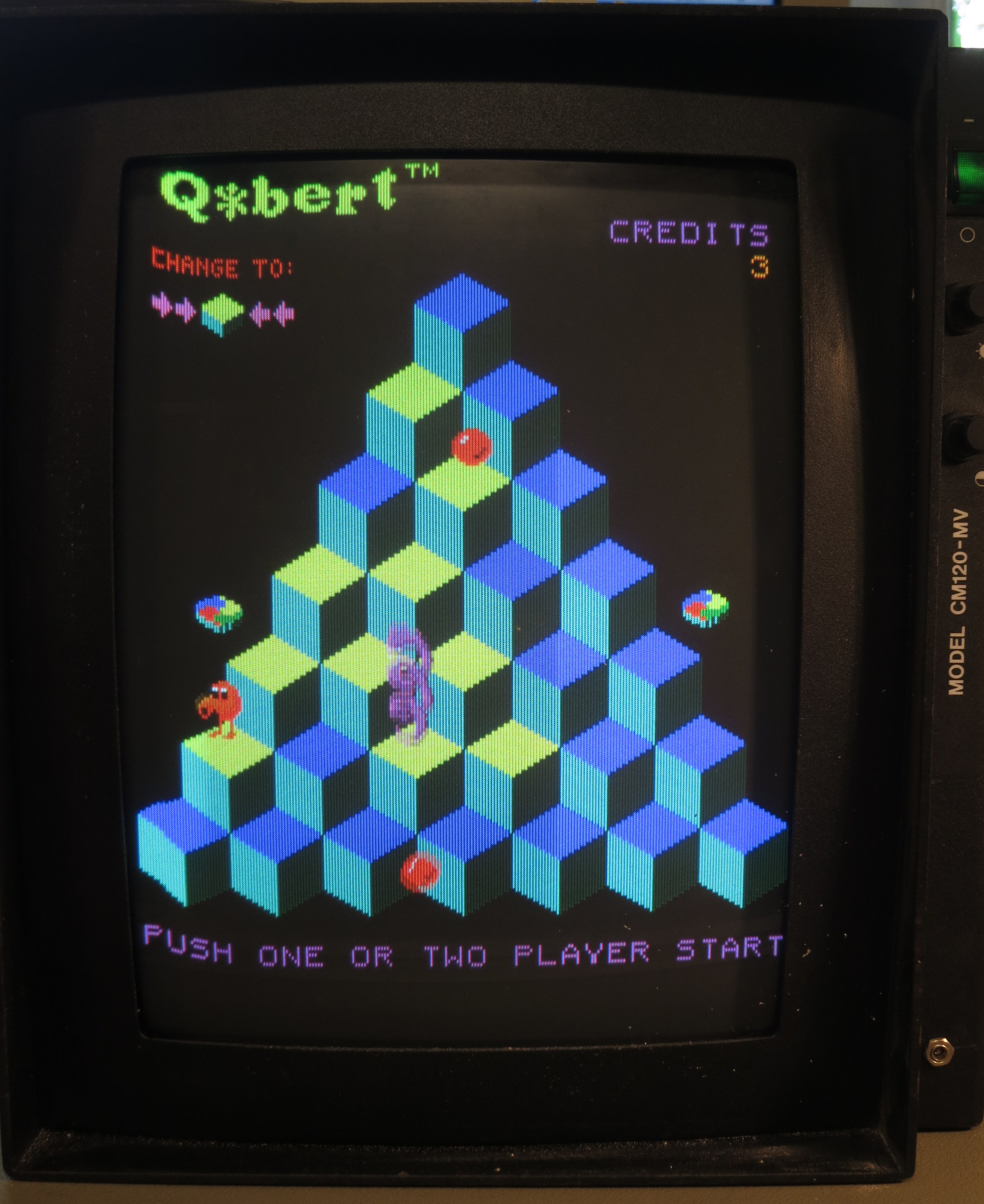
It lasts more than a millisecond! That’s miles off. The effect on the picture looks like this:

Img_7782

That’s as stable as I could get it. Notice how the left hand side (which is actually the top – the monitor is rotated 90 degrees)  is curved and wobbly. It was fairly hard to adjust the monitor to get the picture stable enough to take a photo.

There are solutions to these problems which involve modifying the game boards themselves, but I didn’t want to do that. I think they’re interesting historical artefacts (even the bootleg ones) and I try to keep them as original as possible. I wanted to fix the sync problems outside the board.

After a bit of experimenting, I came up with a little circuit which regenerates the sync pulses to be a bit more standard.

Img_7778

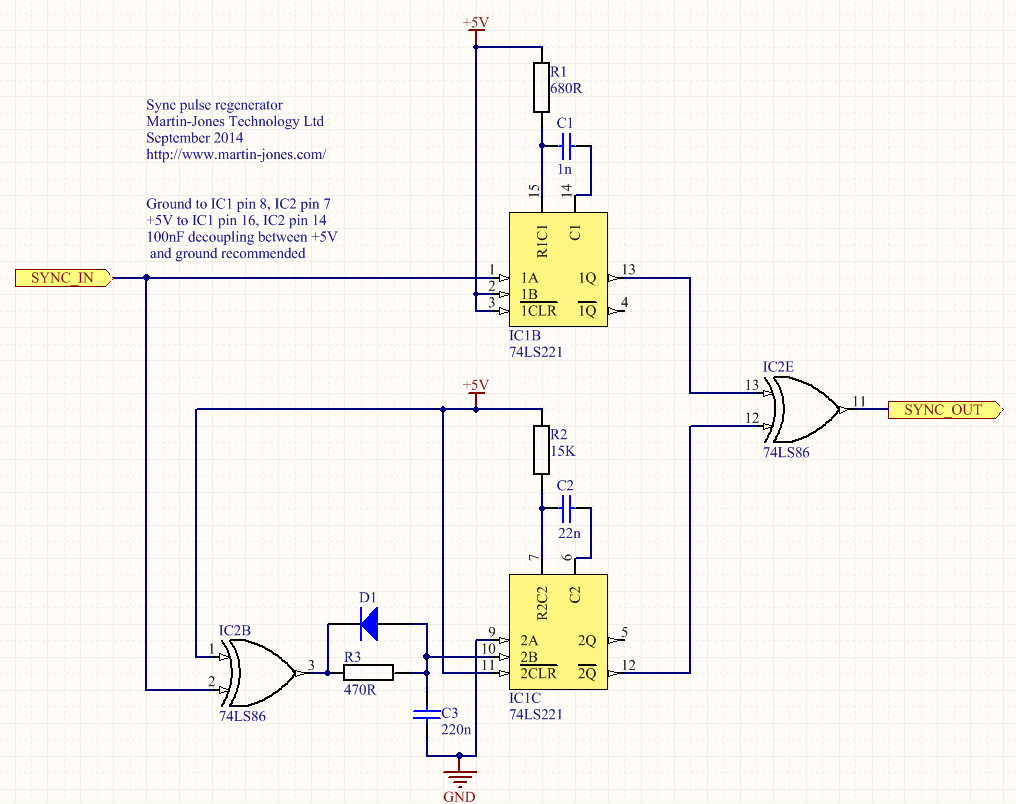
Untangling the rat’s-nest of wires, the schematic diagram looks like this:

syncfix-schematic

The circuit is simple and cheap, using two standard TTL logic ICs. It ought to work with 74HC series chips as well, but some of the resistor values might need changing. The diode is any common-or-garden signal diode: a 1N4148 or 1N914 is fine. It works like this.

  • IC1B is a monostable which triggers on every sync pulse, generating a pulse 4.7 microseconds long. These become the new horizontal sync pulses.
  • IC2B combined with D1, R3 and C3 form a sync separator which triggers the monostable in IC1C only on sync pulses which are longer than about 40 microseconds.
  • IC1C is a monostable which generates vertical sync pulses about 200 microseconds long.
  • IC2E combines the new horizontal and vertical sync pulses into a new sync signal.

The output isn’t what you might call broadcast standard, but it’s close enough to make the monitor happy. I’ve tried it on a few games and it works even on games which the monitor was happy with before. Here’s the results from Pleiads:

pleiadsc

Nice horizontal sync pulses, with a vertical pulse 193 microseconds long. There are a few extra pulses around but the monitor doesn’t seem to mind.

Img_7783

The results from Q*Bert are also good, though the vertical sync looks even more odd:

qbertc

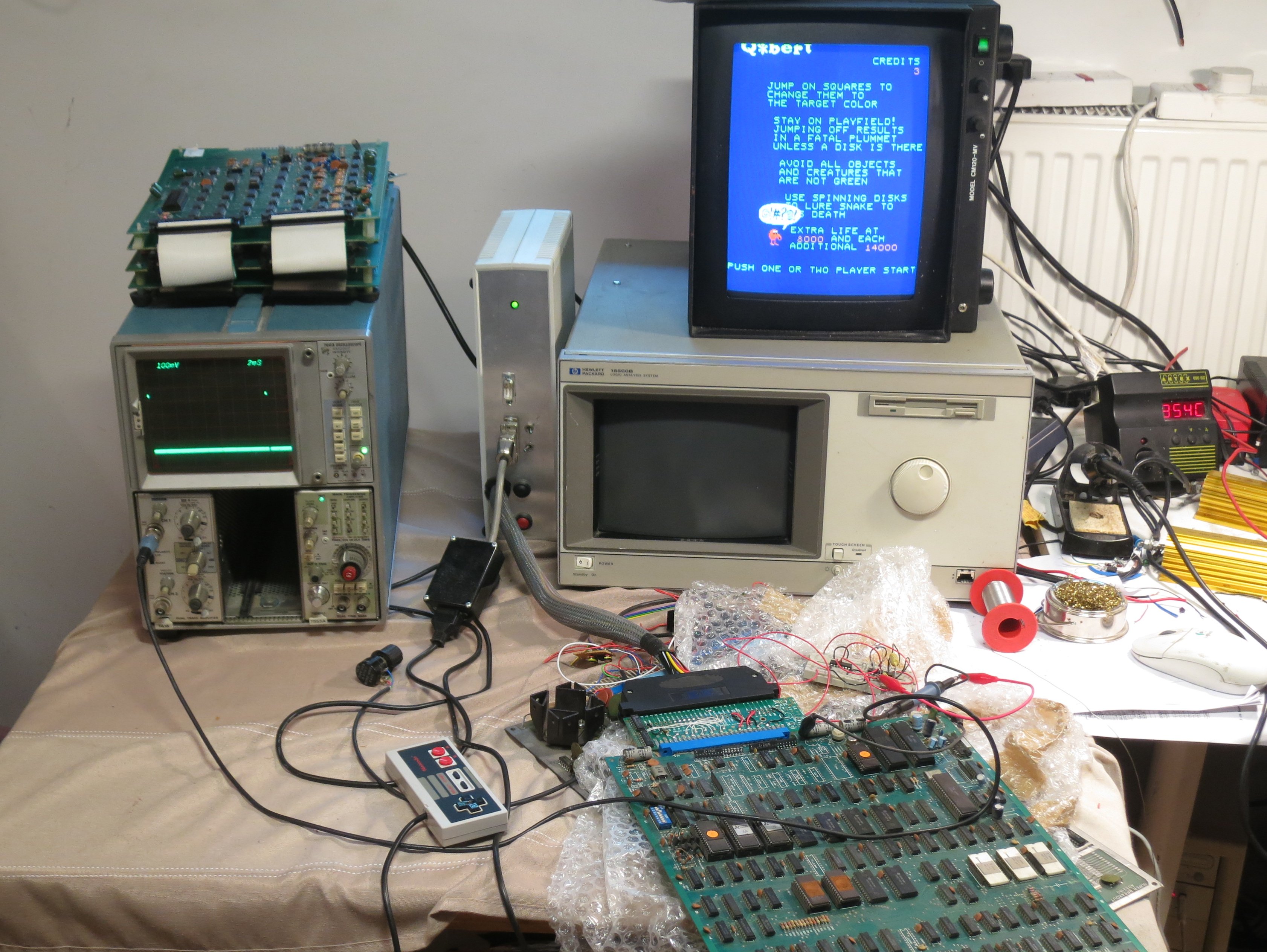
The vertical sync pulse is a sensible length, but there’s a long pause after it before the horizontal pulses start again. That doesn’t bother the monitor, though, and all the wobbles have gone away. Here’s the test setup in use.

Img_7777Sorry about the mess, but at least the display on the monitor is tidy. Mission accomplished.